Skip to guide
PDF Guide
JA

Oasis Aura setup

Oasis Aura Setup Guide

Connect one source. Join with Auracast.

Follow four steps to start the Oasis Aura broadcast.

1

Step 01 · Power

Connect power

Power Oasis Aura before connecting an audio source.

TaskTurn on Oasis Aura.

Connect and switch on

  1. Connect Oasis Aura to power with a USB-C cable and power adapter.
  2. Switch Oasis Aura to ON.
DoneThe Oasis Aura indicators turn on.
If notReseat the power cable.Still off? Try another power adapter and outlet.
2

Step 02 · Audio source

Choose your source

Choose the device that sends audio to Oasis Aura.

TaskSelect one source below.

3

Step 03 · TV / Media Device

Connect Optical

TaskConnect Optical Out and set the TV audio format to PCM.

  1. Short-press AUX/OPT once on Oasis Aura to select OPT input.OPT indicator: blinking red.
  2. Remove the clear caps from both ends of the optical cable.
  3. Connect Optical Out on the TV/source to Optical on Oasis Aura.
  4. On the TV/source, select Optical output and set the format to PCM.
DoneThe audio indicator responds and listeners hear the TV audio.
If notPort: use Optical Out, not In.Format: select PCM. Avoid Dolby, DTS, Bitstream, or Auto.
Not sure how to set PCM?Open the Brand-by-Brand TV Guide →
3

Step 03 · Mixer / AV System

Connect analog audio

TaskMatch the mixer output to the correct cable.

Choose the correct output and cable. The wrong cable may cause low volume, missing vocals, or poor sound quality.
  1. Confirm AUX inputOasis Aura starts in AUX input mode. Confirm the AUX indicator is blinking red.If not, short-press AUX/OPT once.
  2. Check the source outputLook for XLR, 6.35 mm, RCA, or 3.5 mm output ports.
  3. Choose your outputSelect the matching option below.

How many XLR outputs will you use?

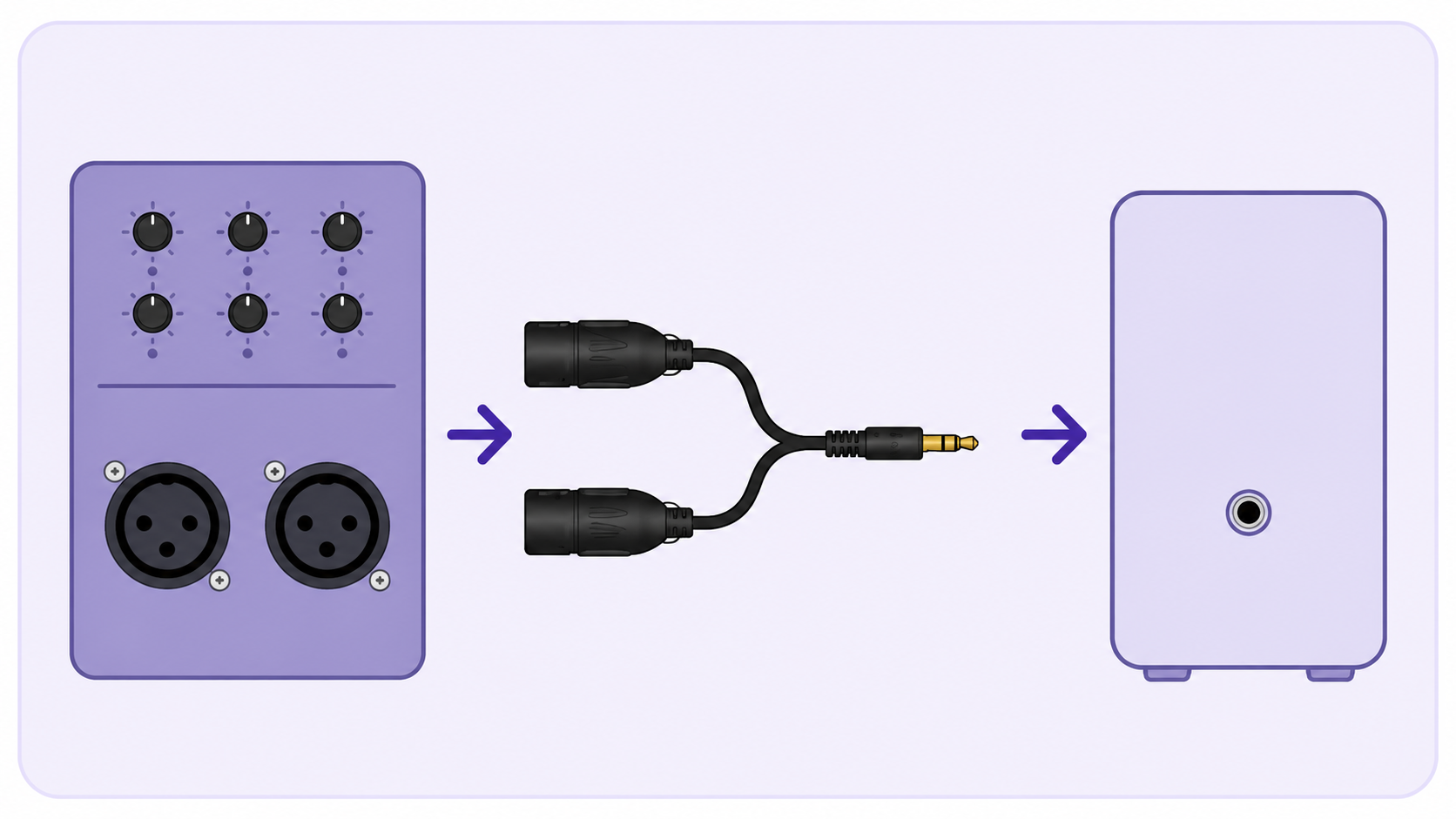
Dual XLR Output

  1. Use a dual XLR female-to-unbalanced 3.5 mm TRS cable.Wrong cable? It may cause low volume or missing vocals.
  2. Connect the XLR plugs to mixer Output L / R.
  3. Connect the 3.5 mm plug to Oasis Aura AUX In.
Mixer OUTPUT L / RDual XLR female-to-3.5 mm TRS cableOasis Aura AUX IN
Dual XLR mixer outputs connected to Oasis Aura AUX In
Oasis Aura rear panel; the AUX input is the second port from the left

Stereo mixer output recommended

Done: the Oasis Aura audio indicator responds and listeners hear clear stereo audio.
If not: confirm both plugs use mixer Output L / R, unmute the output, and lower the mixer level.
Cable not included. Buy separately if needed →

Single XLR Output

  1. Use a single XLR female-to-unbalanced 3.5 mm TRS cable.Mono output: A single XLR carries mono audio.
    Wrong cable? It may cause low volume or poor sound quality.
  2. Connect the XLR plug to the mixer Output.
  3. Connect the 3.5 mm plug to Oasis Aura AUX In.
Mixer OUTPUTSingle XLR female-to-3.5 mm TRS cableOasis Aura AUX IN
Single XLR mixer output connected to Oasis Aura AUX In
Oasis Aura rear panel; the AUX input is the second port from the left

Mono output only

Done: the Oasis Aura audio indicator responds and listeners hear the mono source audio.
If not: confirm the cable is unbalanced 3.5 mm TRS, the mixer jack is an output, and the output is unmuted.
Cable not included. Buy separately if needed →

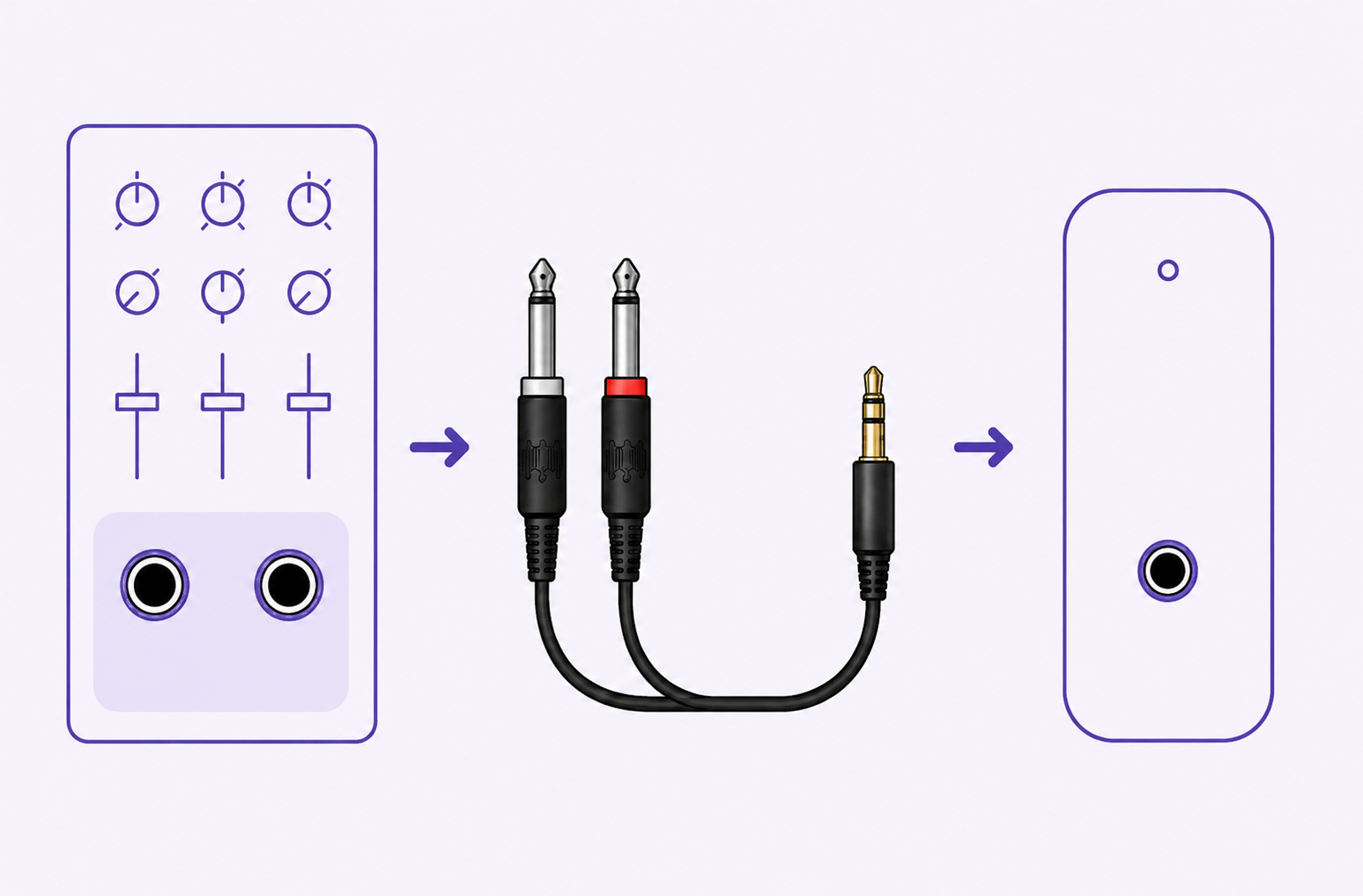
6.35 mm Output

  1. Use the included dual 6.35 mm-to-3.5 mm cable.Wrong cable? It may cause poor sound quality.
  2. Connect the two 6.35 mm plugs to mixer Output L / R.
  3. Connect the 3.5 mm plug to Oasis Aura AUX In.
Mixer OUTPUT L / RDual 6.35 mm-to-3.5 mm cableOasis Aura AUX IN
Dual 6.35 mm mixer outputs connected to Oasis Aura AUX In
Oasis Aura rear panel; the AUX input is the second port from the left

Stereo mixer output recommended

DoneThe audio indicator responds and listeners hear clear stereo audio.
If not: connect both plugs to Output L / R, unmute the mixer output, and lower the source level if sound is distorted.

RCA / 3.5 mm Output

Choose the matching output. Connect only an audio output to Oasis Aura AUX In.
RCA Output

Connect RCA Out to Oasis Aura AUX In with an RCA-to-3.5 mm cable.
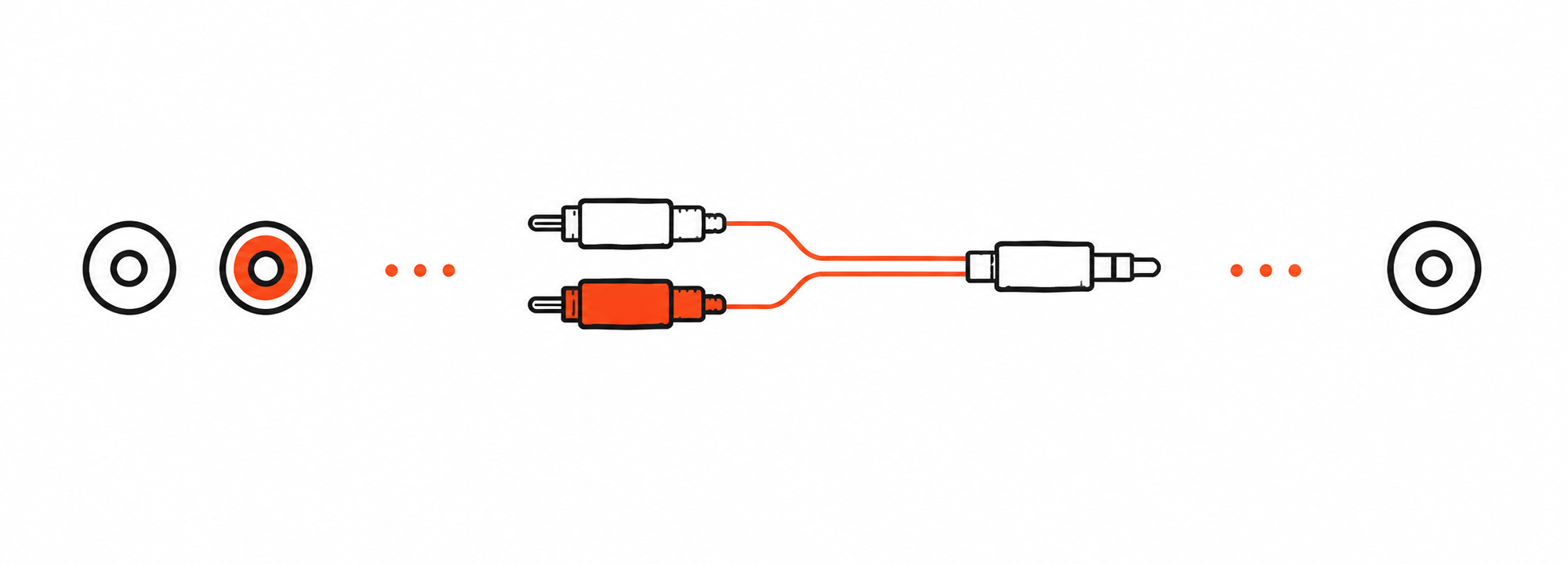
Source RCA OUT L / RRCA-to-3.5 mm cableOasis Aura AUX IN
RCA left and right outputs connected to Oasis Aura AUX In
Oasis Aura rear panel; the AUX input is the second port from the left
RCA cable not included. Buy separately if needed →
3.5 mm Output

Connect 3.5 mm Out to Oasis Aura AUX In with the included 3.5 mm-to-3.5 mm cable.
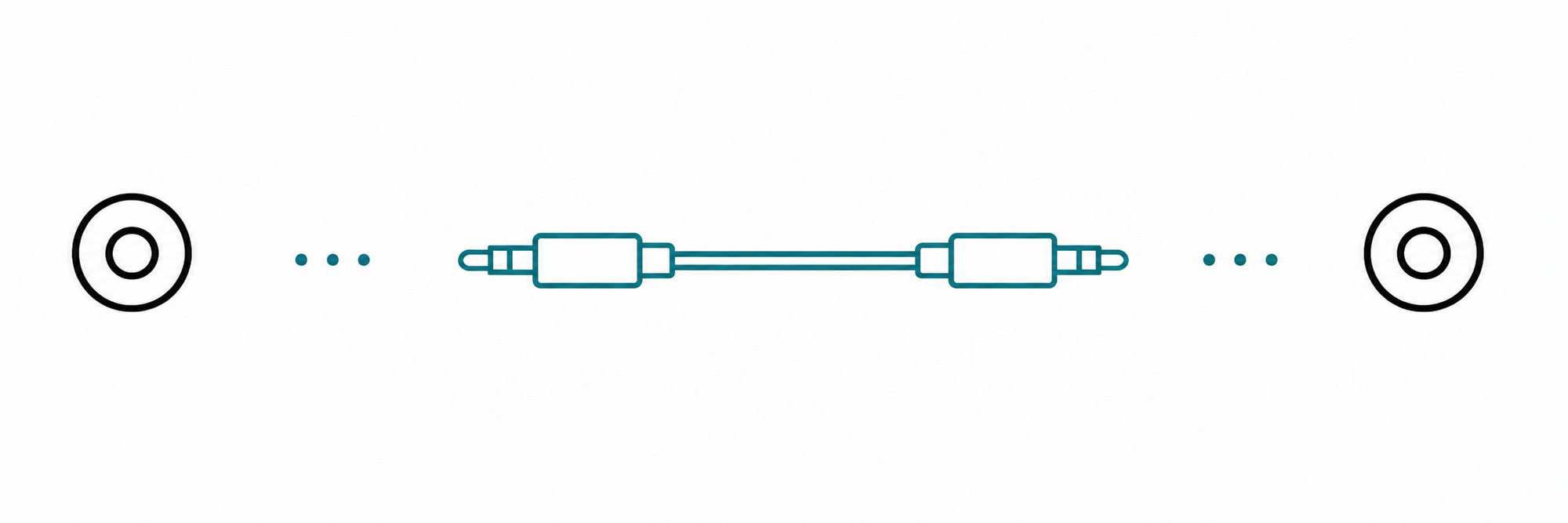
Source 3.5 mm OUT3.5 mm-to-3.5 mm cableOasis Aura AUX IN
3.5 mm audio output connected to Oasis Aura AUX In
Oasis Aura rear panel; the AUX input is the second port from the left
DoneThe audio indicator responds and listeners hear clear audio.
If not: use an audio output—not an input—then unmute the source and raise its volume gradually.
3

Step 03 · Phone / Tablet / Computer

Connect with Bluetooth

TaskPair the audio source with the Oasis Aura Bluetooth input.

Keep your phone close to Oasis Aura while pairing.
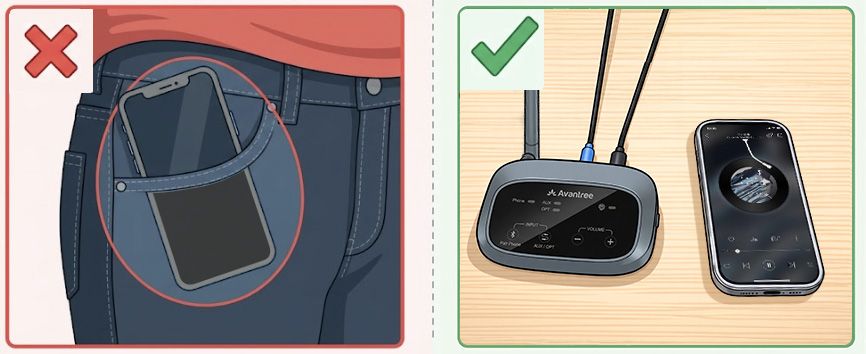
  1. Start pairing: Short-press Phone/Pair once on Oasis Aura.Oasis Aura's Phone light: blinking red and blue.If not, press and hold Phone/Pair.
  2. Connect your source: open Bluetooth settings and select Oasis Aura.
  3. Play audio on the phone, tablet, or computer.
Keep the phone near the Oasis Aura transmitter rather than in a pocket while pairing
For a better experience: use a wired audio input for best stability. Bluetooth range is approximately 10–15 m (30–50 ft).
DoneThe audio indicator responds and listeners hear the source audio.
How It Works: Bluetooth sends audio to Oasis Aura. Listeners receive it through Auracast.
If notOasis Aura not listed? Turn off Bluetooth on its previous source. Start pairing again and move the devices closer.
4

Step 04 · Auracast listener

Join with a listener

Choose how you will hear the Oasis Aura broadcast.

Auracast hearing aids ⌄

Join: In your hearing-aid app, scan for Auracast and select Oasis Aura.
Check: Play audio. No sound? Open your brand guide below and scan again.

Check your exact hearing-aid model →
Other Auracast receivers ⌄

Join: On your receiver, scan for Auracast and select Oasis Aura.
Check: Play audio. No sound? Open your receiver guide below.

Note: AuraClip and AuraCoil currently join open broadcasts only.

Classic Bluetooth headphones / hearing aids ⌄

Why Aura C? Classic Bluetooth cannot join Auracast directly.
How it works: Aura C receives Oasis Aura audio through a compatible phone or tablet and sends it to your Bluetooth headphones or hearing aids.

Open Aura C Setup Guide ↗
Done: your listener plays the Oasis Aura audio. If not: check the linked guide for your device, then confirm the Oasis Aura broadcast is active.

Quick help

Fix common problems

Firmware update

Update Oasis Aura

Update only when a release applies or Support recommends it.

Firmware version note

Avantree unit shows V20.x.x?
Update to the latest V10.x.x.
This is correct—not a downgrade.

  1. Download the Firmware Update Tool.

  2. Connect Oasis Aura to your computer.

    Firmware update cable: Use the gray-tip cable that came with your device.

    Mac users: an Apple charging cable also works.

  3. Run the updater.

    Follow its instructions and keep Oasis Aura connected until the update is complete.

After updating: reset Oasis Aura.

Using Batch No. 26B1? If Oasis Aura is not detected, try another USB data cable or Contact Us for a free one.

During the update: do not unplug Oasis Aura or close the updater.

PC tool · Optional

Change advanced broadcast settings

The DFU Tool Advanced screen includes these optional broadcast controls.

Example DFU Tool screen with Avantree branding. Select the image to enlarge.

Oasis Aura DFU Tool Advanced screen with broadcast name, encryption, default volume, QR code, and receiver synchronization controls
Rename the broadcastChange the name listeners see when they search for Oasis Aura.
Encrypt the broadcastAdd a passcode so only listeners with the correct code can join.
Set the default volumeAdjust the transmitter's default broadcast volume.
Generate a broadcast QR codeCreate a QR code for joining the broadcast. Requires compatible hearing aids and an app that supports joining by QR code.
Use Group SettingsApply the same broadcast name and passcode to multiple supported receivers. Learn about Group Settings →

Need more help?

Our support team is here for you.

Contact Support