RCA Output
Connect RCA Out to the transmitter AUX In with an RCA-to-3.5 mm cable.
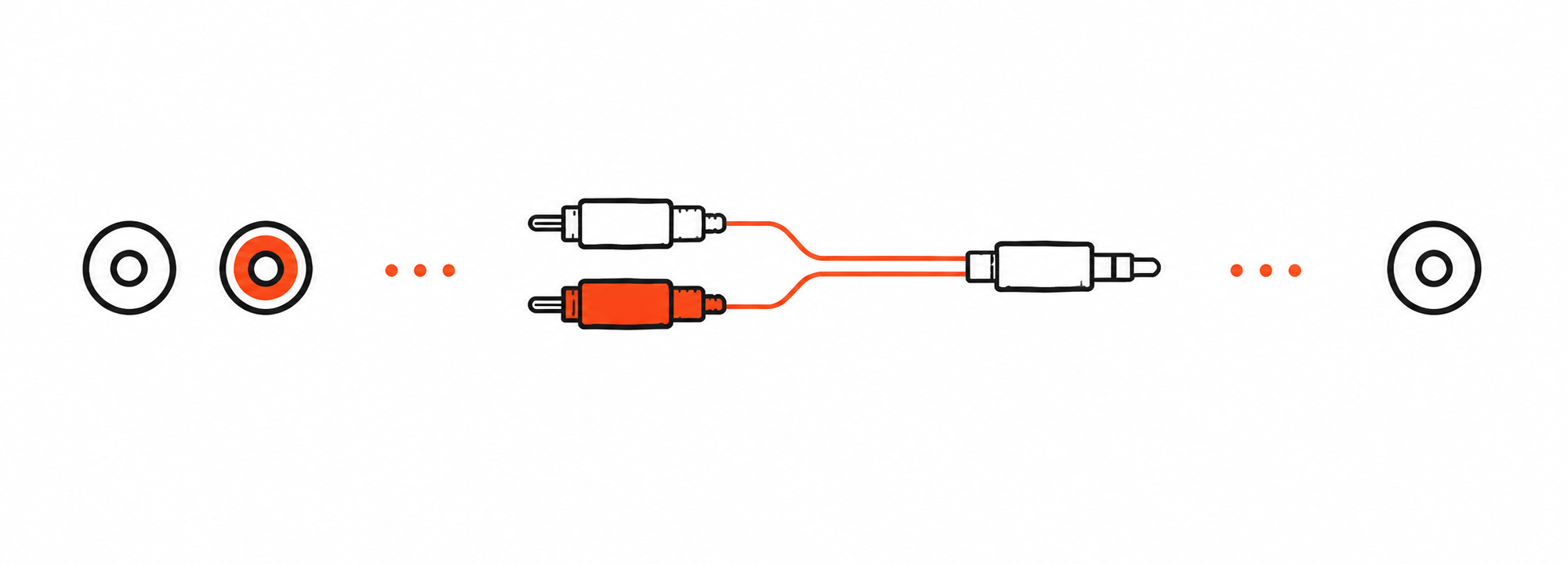

RCA cable not included. Buy separately if needed →

Interactive user guide
Follow four steps to connect the Harmony A3 transmitter and three AuraLink receivers.
Step 01 · Power
Power Harmony A3 transmitter before connecting an audio source.
TaskTurn on the transmitter.
Step 02 · Audio source
Choose your device to open Step 3 — connection settings.
TaskSelect one option to open its connection steps.
Step 03 · TV / Media Device
TaskConnect Optical Out and set the TV audio format to PCM.
Step 03 · Mixer / AV System
TaskMatch the mixer output to the correct cable.
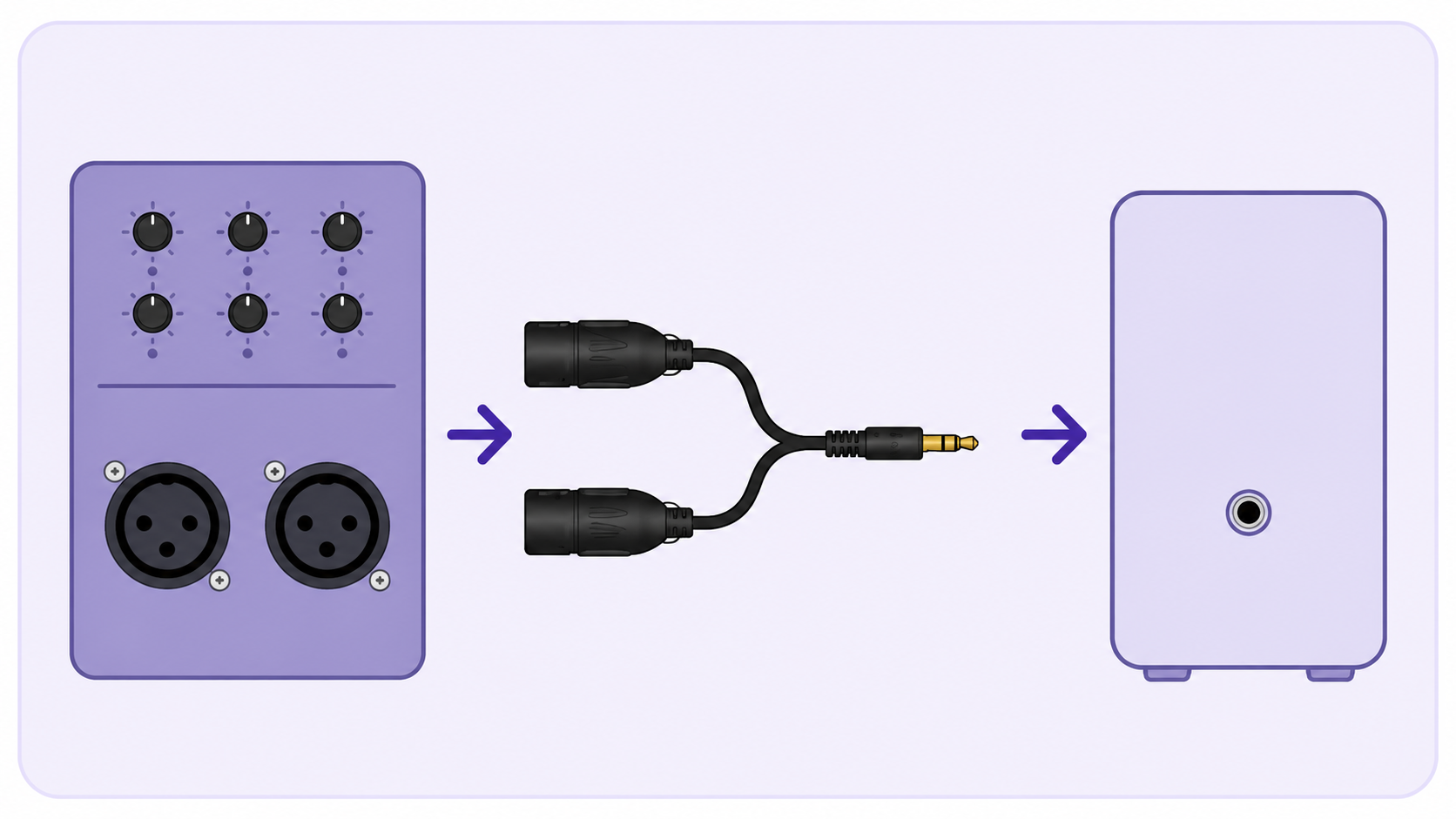
Stereo mixer output recommended

Mono output only
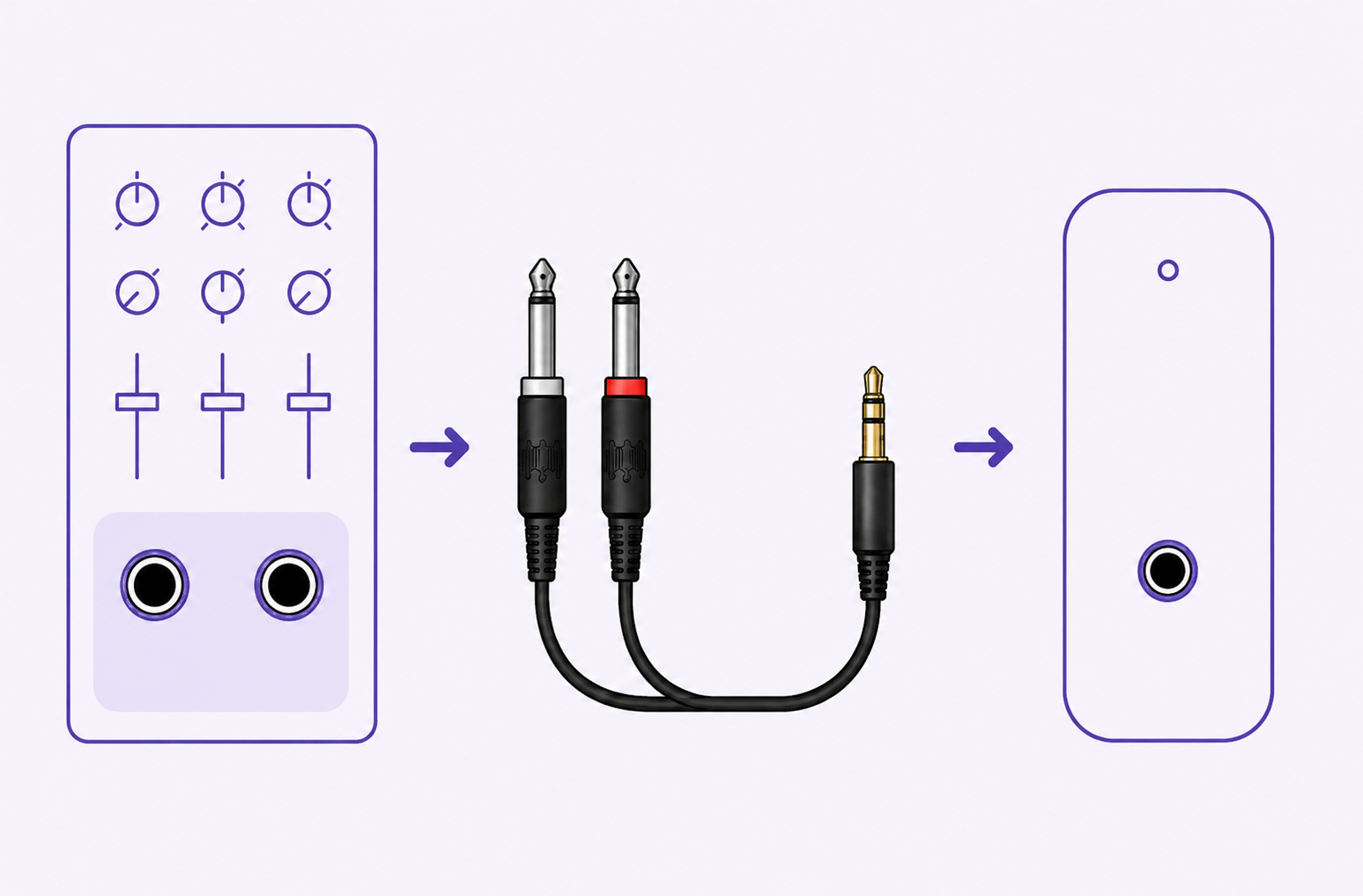
Stereo mixer output recommended
Connect RCA Out to the transmitter AUX In with an RCA-to-3.5 mm cable.
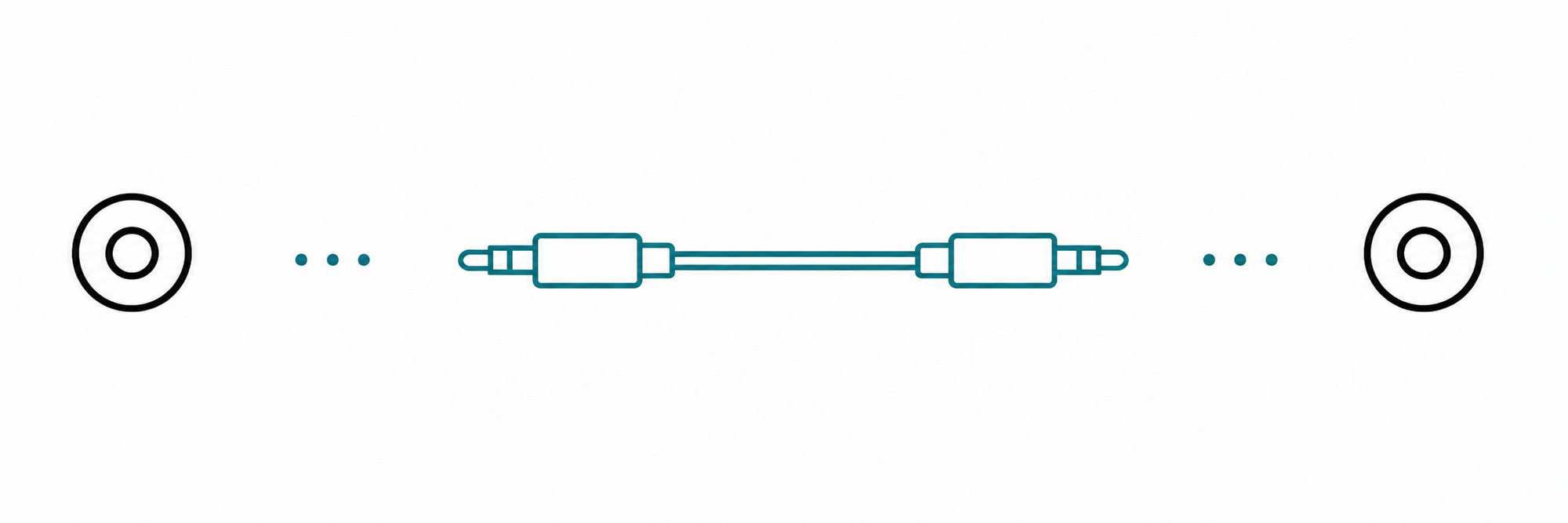
Connect 3.5 mm Out to the transmitter AUX In with the included 3.5 mm-to-3.5 mm cable.
Step 03 · Phone / Tablet / Computer
TaskPair the audio source with the transmitter Bluetooth input.
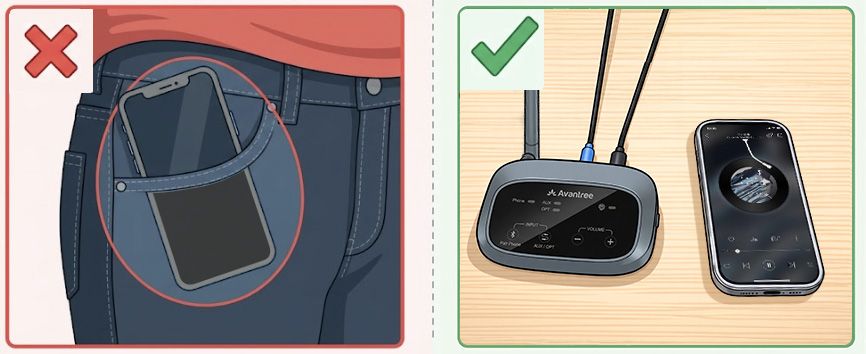
Keep your phone close to the transmitter while pairing.
The transmitter not listed?
Step 04 · Listen
First: choose and connect your audio source (Steps 2–3).
Requires: One powered speaker with a 3.5 mm AUX or RCA input per receiver. Passive speakers need an amplifier.
Video: turn on the receivers and connect them to powered speakers.
All three receivers show solid orange; every connected speaker plays the audio.
Light blinking orange? Move the receiver closer to the transmitter.
Light solid, no sound? Check the cable and volume. Check the speaker's AUX setting ↓
Still no sound? Fix a problem →
Placement
Optional expansion
To add another powered speaker, connect a compatible AuraLink receiver to its AUX or RCA input and join the same Auracast broadcast. Check for audio at the new speaker.
Receiver reference
Use USB-C and a 5 V, 1–2.4 A power source. The receiver works while charging and plays for up to 20 hours.
Turns off after 15 minutes without audio? Older firmware can do this even while plugged in. Check the Harmony A3 firmware page for an update.
Audio only: phone calls are not supported. Bluetooth audio takes priority; Auracast resumes when Bluetooth audio stops.
Firmware update
Update the AuraLink receivers and transmitter. The firmware page lists the transmitter as Oasis Aura.
Update each receiver separately, one at a time.
Download the Firmware Update Tool.
Connect one AuraLink receiver to your computer.
Firmware update cable: Use the gray USB data cable included with Harmony A3.
Mac users: use the same included gray USB data cable.
Run the updater.
Follow its instructions and keep one AuraLink receiver connected until the update is complete.
Download the Firmware Update Tool.
Connect the Harmony A3 transmitter to your computer.
Firmware update cable: Use the gray USB data cable included with Harmony A3.
Mac users: use the same included gray USB data cable.
Run the updater.
Follow its instructions and keep the Harmony A3 transmitter connected until the update is complete.
PC tool · Optional
Connect the Harmony A3 transmitter to your computer. Open the Firmware Update Tool and select Advanced.
Example Oasis Aura Firmware Update Tool screen. Select the image to enlarge.
Optional listening method
Set the Harmony A3 transmitter for compatible hearing aids, then choose how your hearing aids will receive the Auracast broadcast.
First: Open Advanced settings in the Firmware Update Tool. Select Advanced, set Audio Mode to Hearing Aid Compatible, and apply the settings.
Join from your hearing-aid app or brand guide.
Choose your brand → You can hear music from your phone through your hearing aids

 You can switch your hearing aids to “T” or “MT”
Look for a T or MT setting in your hearing aid app or paperwork. If you cannot find one, ask your hearing care professional.
Other ways to listen
Aura C phone hearing aids
Aura C does not pair directly with hearing aids.
Set up Aura C →Switch to T or MT. The neckloop sends the broadcast to your hearing aids.
AuraCoilBuilt-in neckloop
Set up AuraCoil →AuraClipNeeds a compatible 3.5 mm T-coil neckloop
Set up AuraClip →Quick help
Problem: An AuraLink light keeps blinking orange. Possible cause: The transmitter is off, not broadcasting, or too far away. Try: Turn on the Harmony A3 transmitter, confirm its Auracast broadcast indicator is orange, and move the receiver close to it. Check: The receiver light turns solid orange.
Problem: The AuraLink light is solid orange but there is no sound. Possible cause: The powered speaker is off, using a different input, or its volume is low. Try: Play audio at the source, check the receiver-to-speaker cable, select the connected AUX or RCA input, and raise the speaker volume carefully. Check: The speaker plays the source audio.
Problem: A powered speaker's audio cuts out. Possible cause: Distance or obstacles weaken the Auracast signal. Try: Move its AuraLink receiver closer to the Harmony A3 transmitter with clearer line of sight, then play audio again. Check: Playback remains steady.
Problem: An AuraLink receiver turns off after about 15 minutes without audio, even while charging. Possible cause: Earlier receiver firmware enables automatic power off. Try: Check the Harmony A3 firmware page for the receiver update. Check: The updated receiver stays on through a quiet period while connected to external power.
Need more help?
Our support team is here for you.
Was this helpful?