Charging
- USB-C power: 5 V, 1–2.4 A.
- Solid red: charging.
- LED off: fully charged.
- About 2.5 hours to charge.
- Up to 35 hours playtime.
Watch: connect USB-C power and check the charging indicator.

Interactive user guide
Turn on Aria Aura near your Venucast transmitter to join or switch its Auracast broadcast.
Start setup
Turn on the Venucast kit transmitter.
Slide the Aria Aura power switch to ON. The LED blinks orange while it searches for a nearby broadcast.
Stay near the kit transmitter. The LED turns solid orange when Aria Aura joins the broadcast.
Watch: turn on Aria Aura near the kit transmitter and check for a solid orange LED.
Want a different broadcast? Hold the Multi-Function button for 5 seconds. The LED blinks orange while scanning; repeat to scan the next broadcast. Stop when the LED is solid orange on the broadcast you want.
Fix a problem
Flashing orange? Aria Aura is searching. Turn on the Venucast kit transmitter and keep the headphones nearby.
Joined: the LED turns solid orange. To scan another broadcast, hold Multi-Function again.
Still flashing? Perform a DFU firmware update ↓ with the included gray USB data cable. If that fails, contact Venucast Support.
Symptom: the Aria Aura LED is solid orange, but you cannot hear the intended audio.
Done: the LED is solid orange and you can hear the intended broadcast. If not, contact Venucast Support below.
For a secured Auracast broadcast, contact Venucast Support for help with access. This guide does not provide a passcode.
Reference
Watch: connect USB-C power and check the charging indicator.
The Multi-Function button searches or switches broadcasts. The EQ button selects Voice Clear 1, Voice Clear 2, Bass, or Balance. The LED blinks orange while searching and is solid orange when joined.
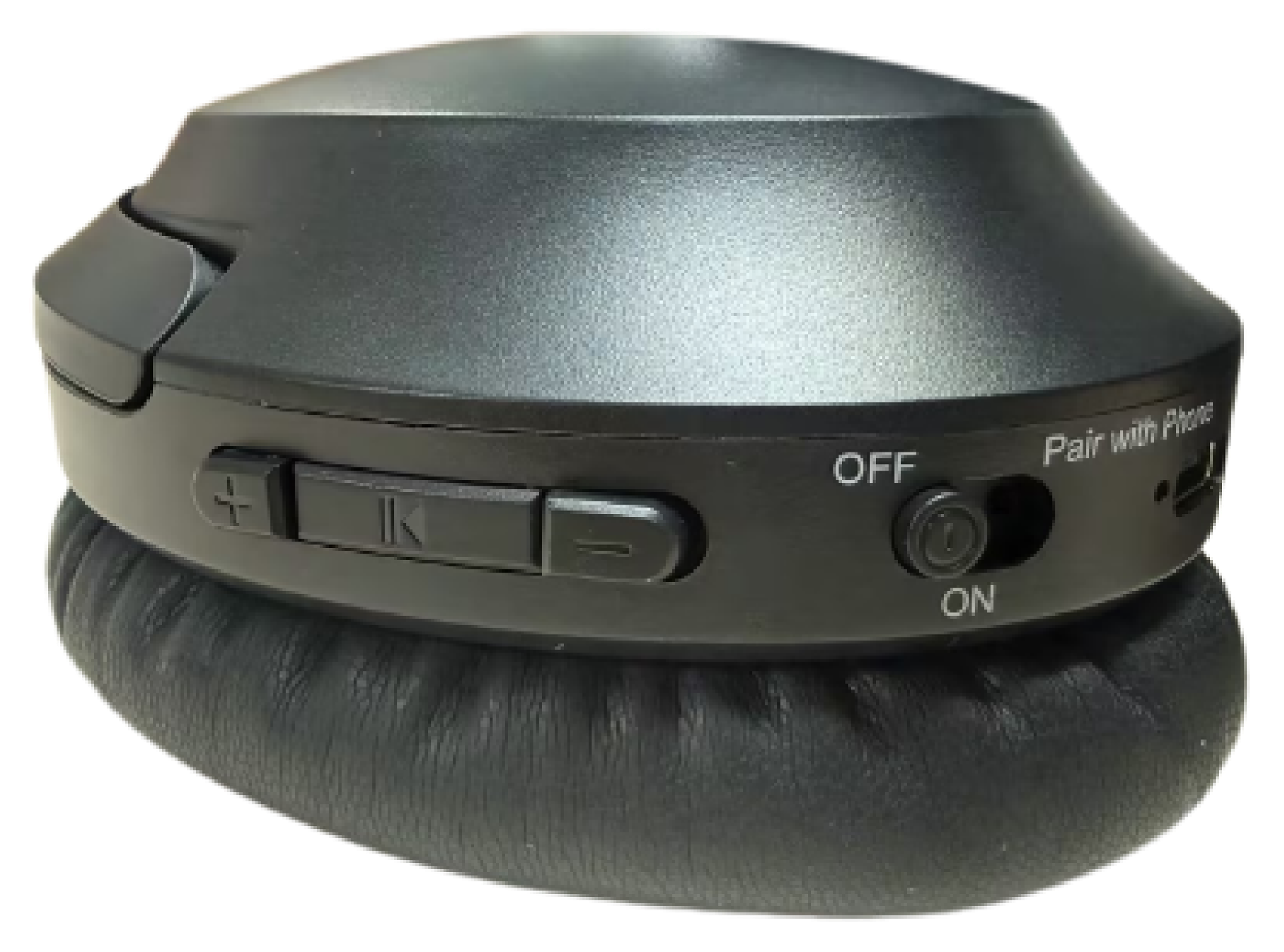 Open buttons & indicators ↗
Firmware update
Firmware may provide fixes or improvements. Use only the official Aria Aura update page and follow the instructions shown there.
Open the official page and install Avantree Firmware Updater for Windows 10 or later, or macOS 10.14 or later.
Disconnect Aria Aura from other devices. Connect it to the computer with the included gray USB data cable.
Follow the updater through its final Reset Device step. Keep Aria Aura connected until completion is confirmed.
During an update: do not turn off or disconnect Aria Aura, and keep it disconnected from all other devices until completion is confirmed.
Need more help?
Our support team is here for you.
Was this helpful?