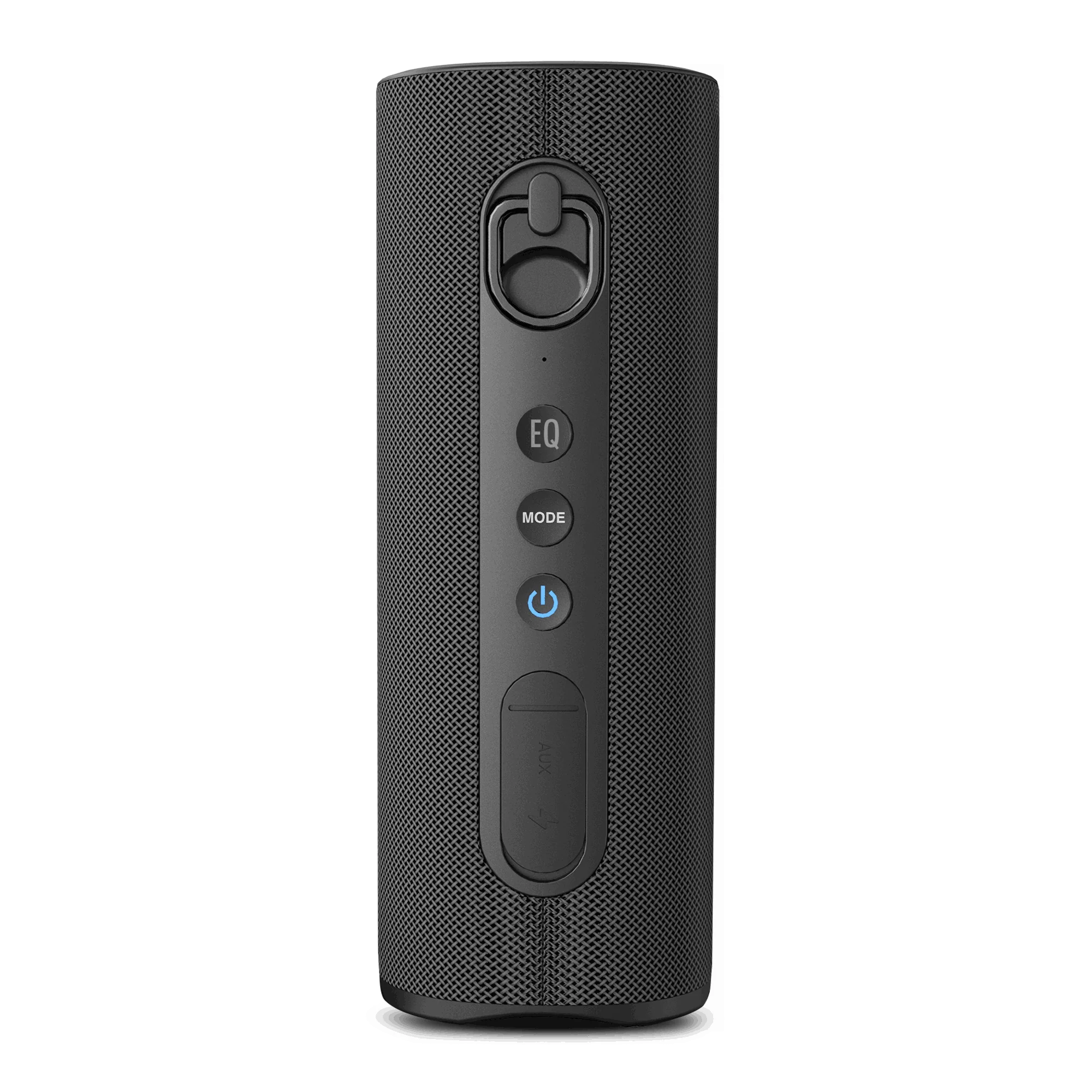
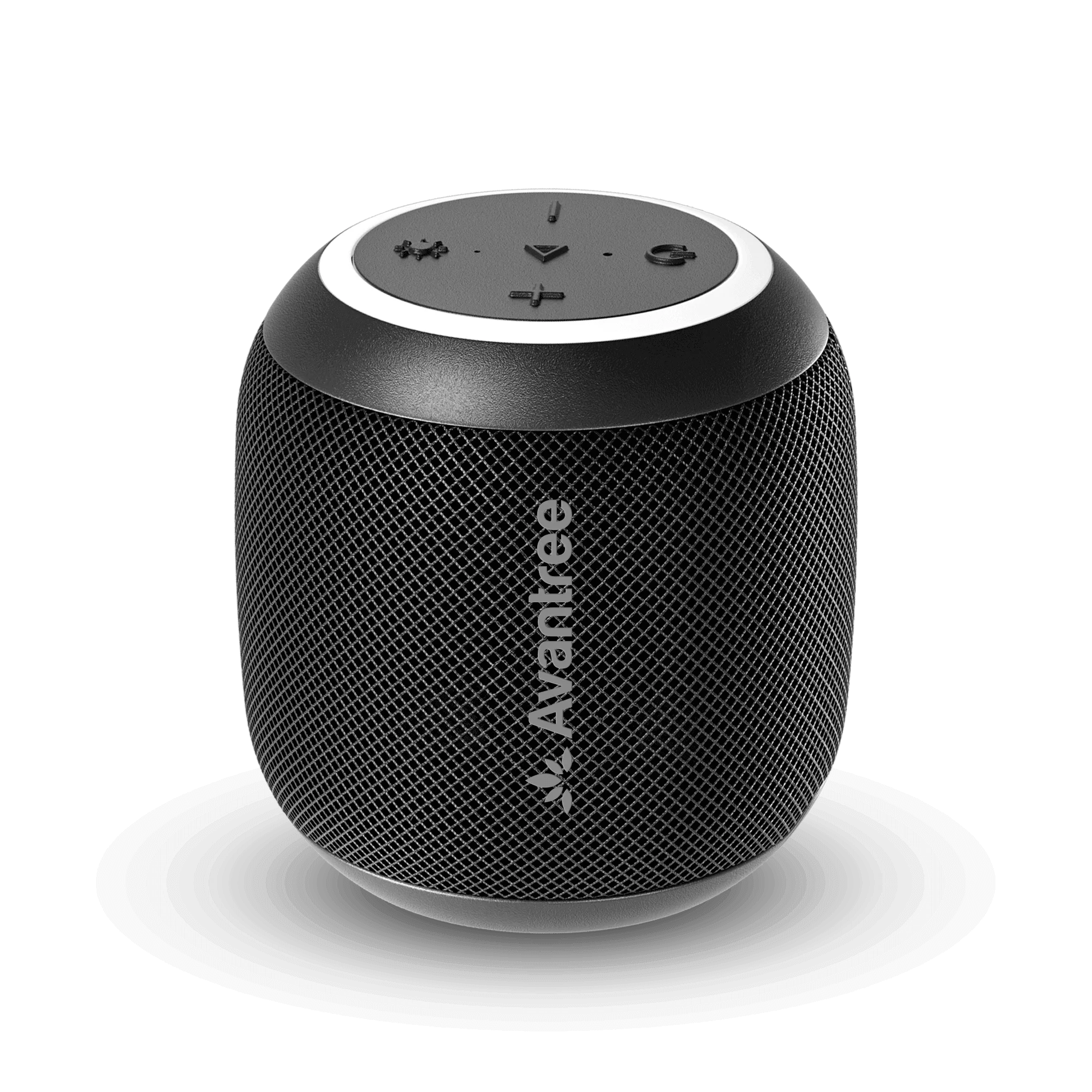
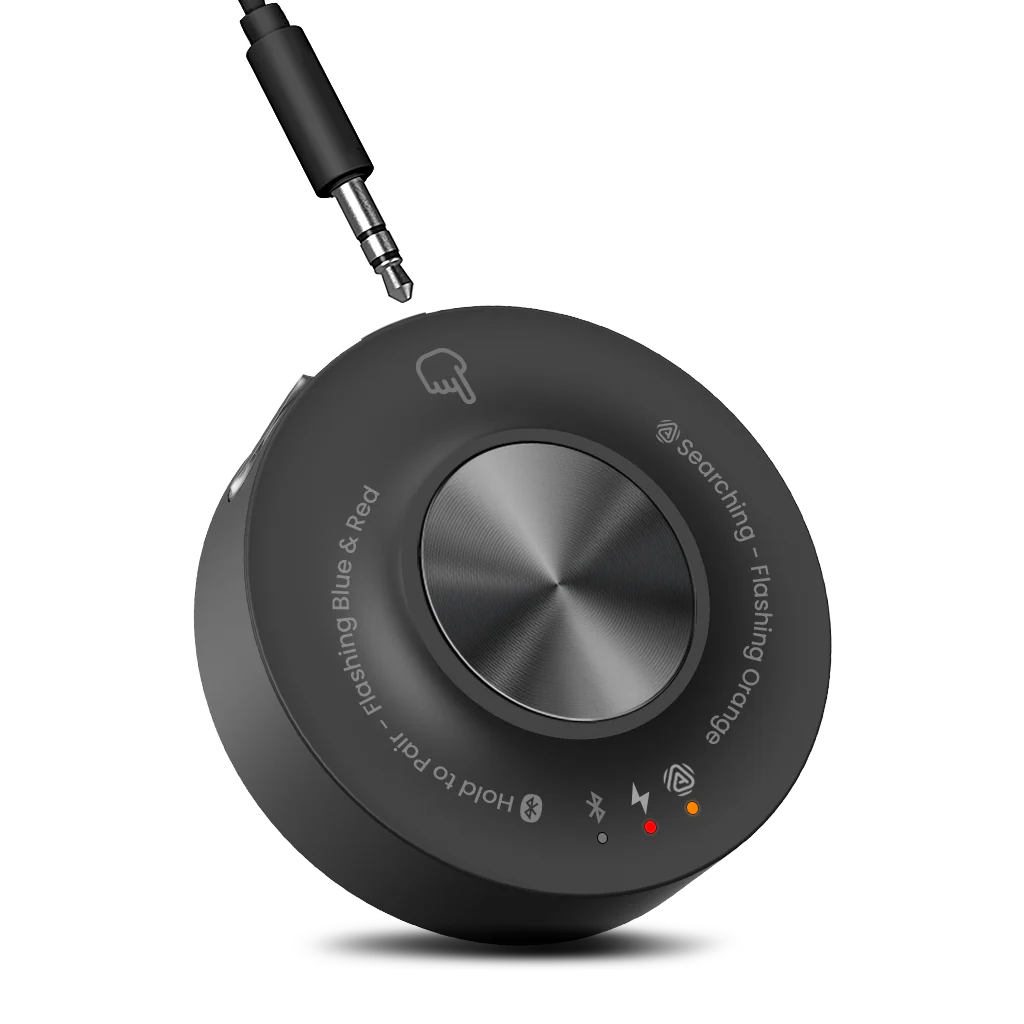
User Manual
ES

Interactive user guide

Harmony A2 Setup Guide

Connect one source. Play it through every speaker.

Follow three steps to start the Harmony A2 Auracast speaker system.

1

Step 01 · Power

Connect power

Power Harmony A2 transmitter before connecting an audio source.

TaskTurn on the transmitter.

Connect and switch on

Connect the transmitter to power using a USB-C cable and power adapter. Then switch the transmitter to ON.

DoneThe transmitter indicators turn on.
If notReseat the power cable. Try another power adapter and outlet.
2

Step 02 · Audio source

Choose your source

Choose the device that sends audio to the transmitter.

TaskSelect one source below.

3

Step 03 · TV / Media Device

Connect Optical

TaskConnect Optical Out and set the TV audio format to PCM.

  1. Press AUX/OPT on the transmitter to select OPT input. The OPT indicator blinks red.
  2. Remove the clear caps from both ends of the optical cable.
  3. Connect Optical Out on the TV/source to Optical on the transmitter.
  4. On the TV/source, select Optical output and set the format to PCM.
DoneThe audio indicator responds and listeners hear the TV audio.
If notUse Optical Out, not In. Set the format to PCM—not Dolby, DTS, Bitstream, or Auto.
Not sure how to set PCM?Open the Brand-by-Brand TV Guide →
3

Step 03 · Mixer / AV System

Connect analog audio

TaskMatch the mixer output to the correct cable.

Choose the correct output and cable. The wrong cable may cause low volume, missing vocals, or poor sound quality.
  1. Select AUX inputPress AUX/OPT on the transmitter. The AUX indicator blinks red.
  2. Check the source outputLook for XLR, 6.35 mm, RCA, or 3.5 mm output ports.
  3. Choose your outputSelect the matching option below.

How many XLR outputs will you use?

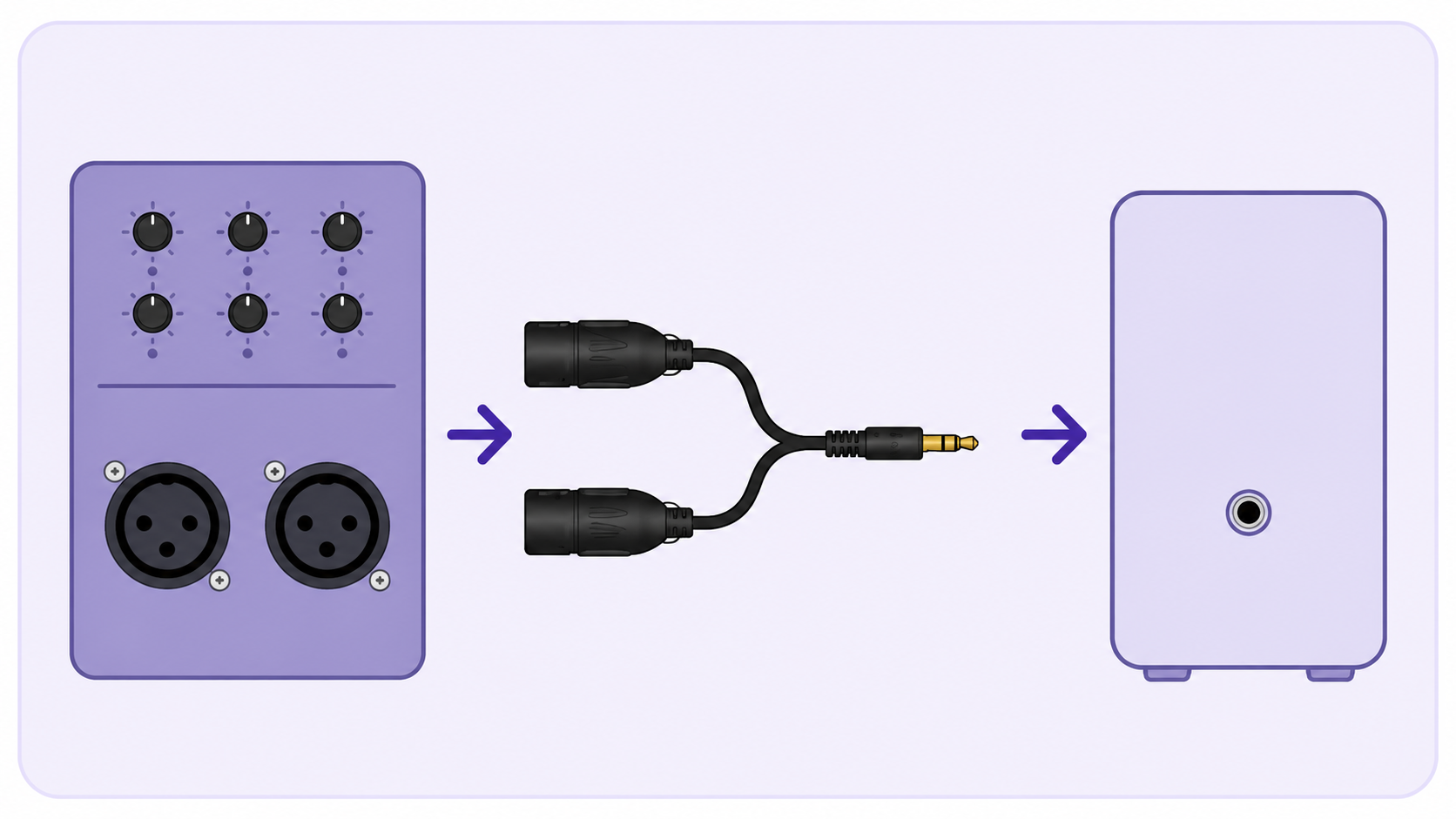
Dual XLR Output

  1. Use a dual XLR female-to-unbalanced 3.5 mm TRS cable.Wrong cable? It may cause low volume or missing vocals.
  2. Connect the XLR plugs to mixer Output L / R.
  3. Connect the 3.5 mm plug to the transmitter AUX In.
Mixer OUTPUT L / RDual XLR female-to-3.5 mm TRS cabletransmitter AUX IN
Dual XLR mixer outputs connected to transmitter AUX In
The transmitter rear panel; the AUX input is the second port from the left

Stereo mixer output recommended

Done: the transmitter audio indicator responds and listeners hear clear stereo audio.
If not: confirm both plugs use mixer Output L / R, unmute the output, and lower the mixer level.
Cable not included. Buy separately if needed →

Single XLR Output

  1. Use a single XLR female-to-unbalanced 3.5 mm TRS cable.Mono output: A single XLR carries mono audio.
    Wrong cable? It may cause low volume or poor sound quality.
  2. Connect the XLR plug to the mixer Output.
  3. Connect the 3.5 mm plug to the transmitter AUX In.
Mixer OUTPUTSingle XLR female-to-3.5 mm TRS cabletransmitter AUX IN
Single XLR mixer output connected to transmitter AUX In
The transmitter rear panel; the AUX input is the second port from the left

Mono output only

Done: the transmitter audio indicator responds and listeners hear the mono source audio.
If not: confirm the cable is unbalanced 3.5 mm TRS, the mixer jack is an output, and the output is unmuted.
Cable not included. Buy separately if needed →

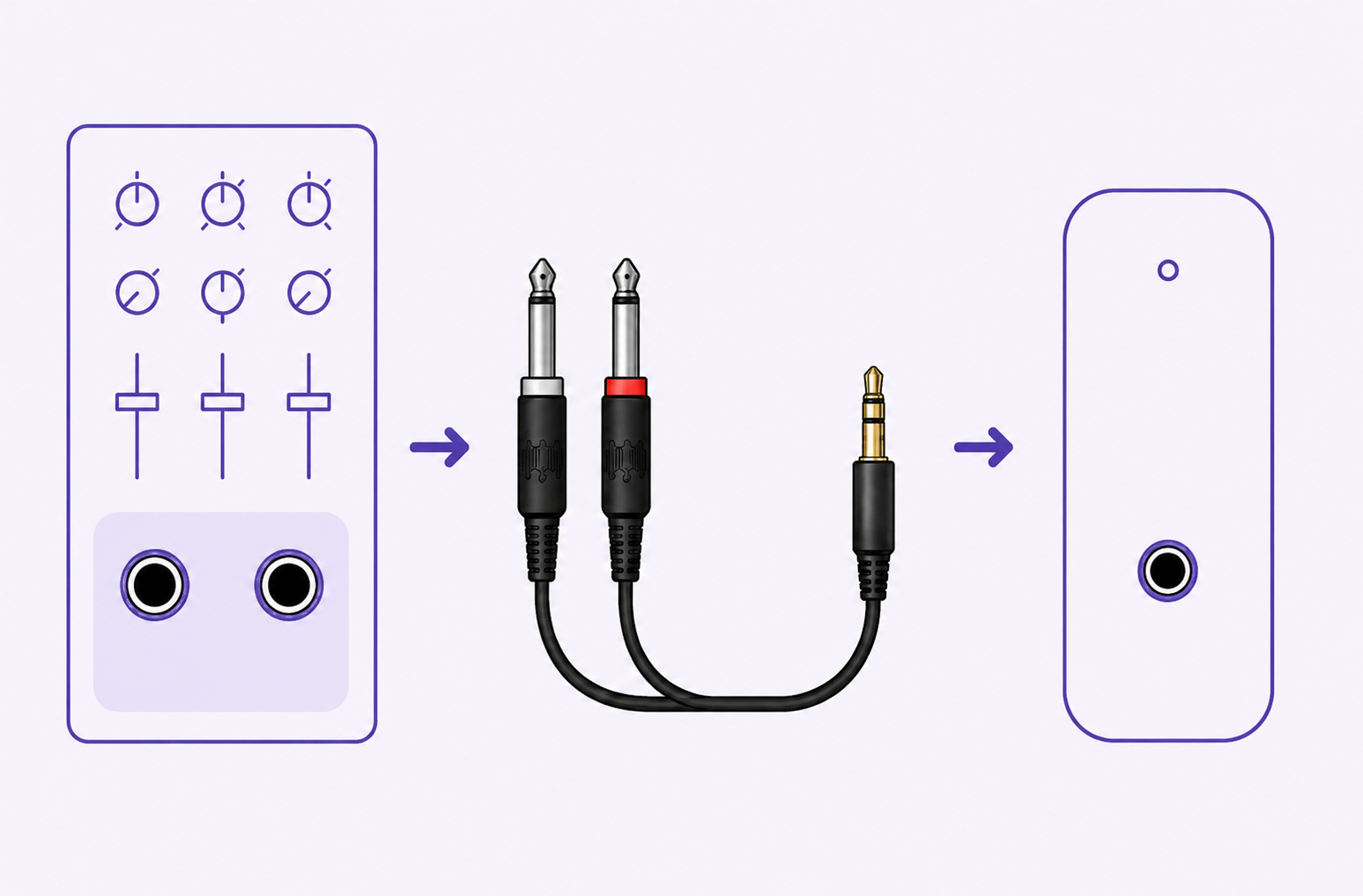
6.35 mm Output

  1. Use the included dual 6.35 mm-to-3.5 mm cable.Wrong cable? It may cause poor sound quality.
  2. Connect the two 6.35 mm plugs to mixer Output L / R.
  3. Connect the 3.5 mm plug to the transmitter AUX In.
Mixer OUTPUT L / RDual 6.35 mm-to-3.5 mm cabletransmitter AUX IN
Dual 6.35 mm mixer outputs connected to transmitter AUX In
The transmitter rear panel; the AUX input is the second port from the left

Stereo mixer output recommended

DoneThe audio indicator responds and listeners hear clear stereo audio.
If not: connect both plugs to Output L / R, unmute the mixer output, and lower the source level if sound is distorted.

RCA / 3.5 mm Output

Choose the matching output. Connect only an audio output to the transmitter AUX In.
RCA Output

Connect RCA Out to the transmitter AUX In with an RCA-to-3.5 mm cable.
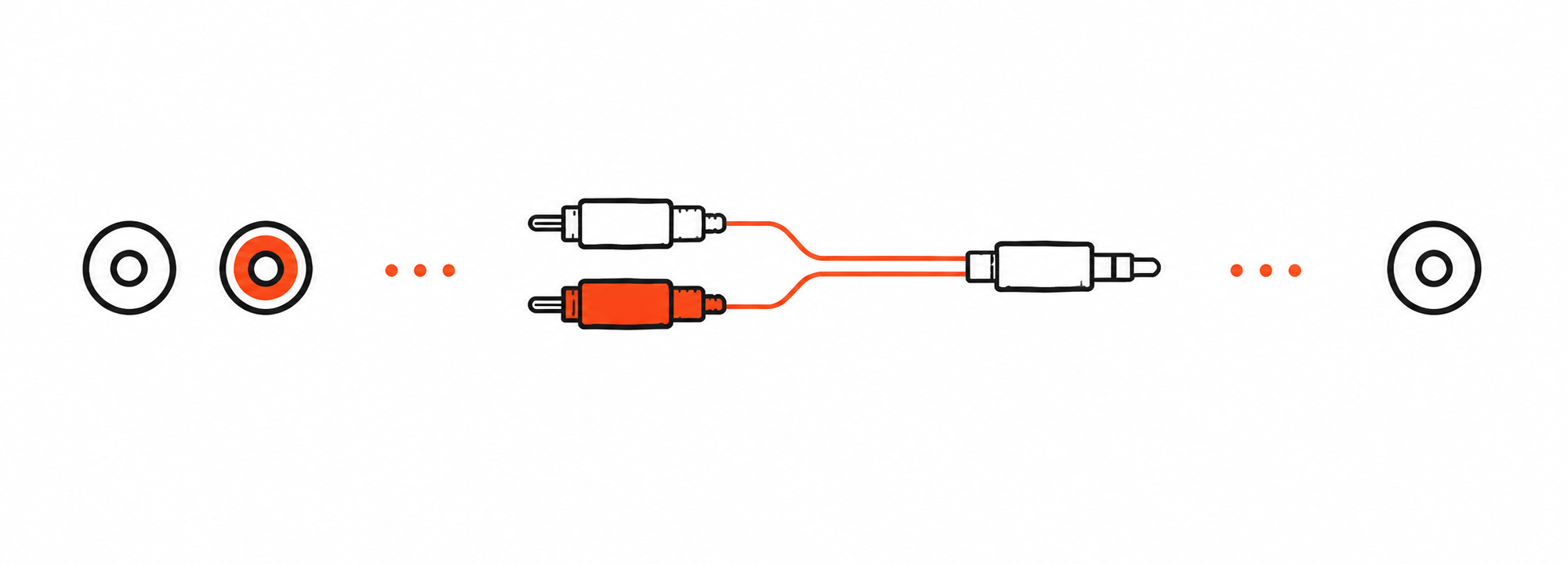
Source RCA OUT L / RRCA-to-3.5 mm cabletransmitter AUX IN
RCA left and right outputs connected to transmitter AUX In
The transmitter rear panel; the AUX input is the second port from the left
RCA cable not included. Buy separately if needed →
3.5 mm Output

Connect 3.5 mm Out to the transmitter AUX In with the included 3.5 mm-to-3.5 mm cable.
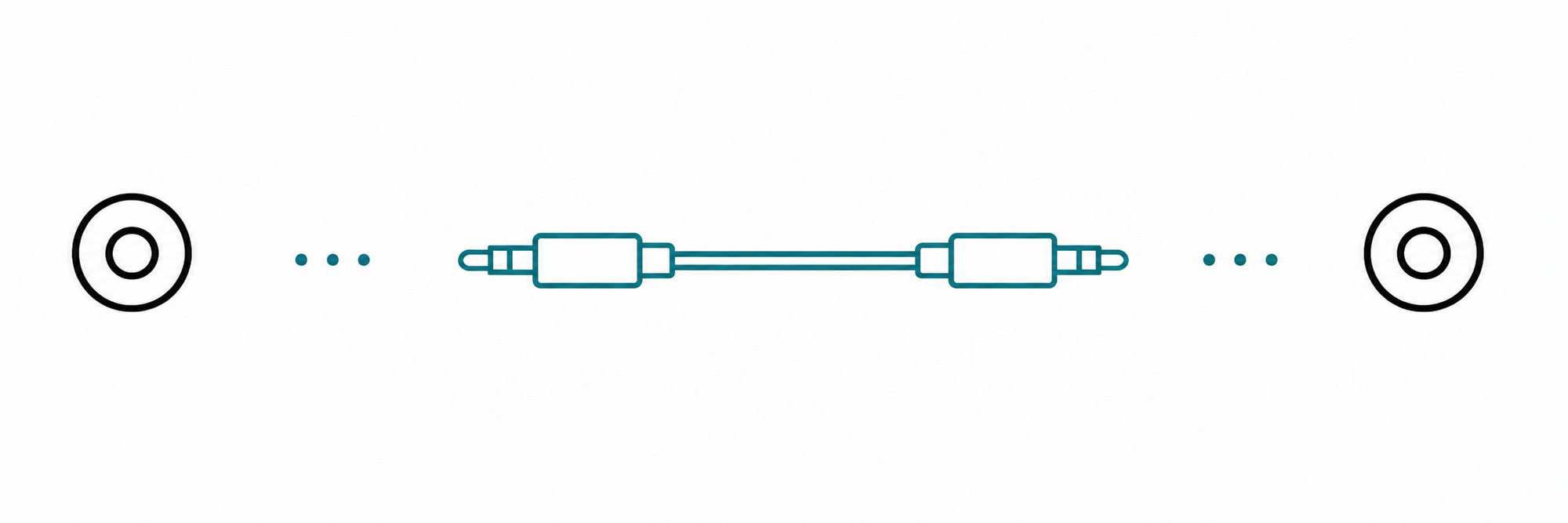
Source 3.5 mm OUT3.5 mm-to-3.5 mm cabletransmitter AUX IN
3.5 mm audio output connected to transmitter AUX In
The transmitter rear panel; the AUX input is the second port from the left
DoneThe audio indicator responds and listeners hear clear audio.
If not: use an audio output—not an input—then unmute the source and raise its volume gradually.
3

Step 03 · Phone / Tablet / Computer

Connect with Bluetooth

TaskPair the audio source with the transmitter Bluetooth input.

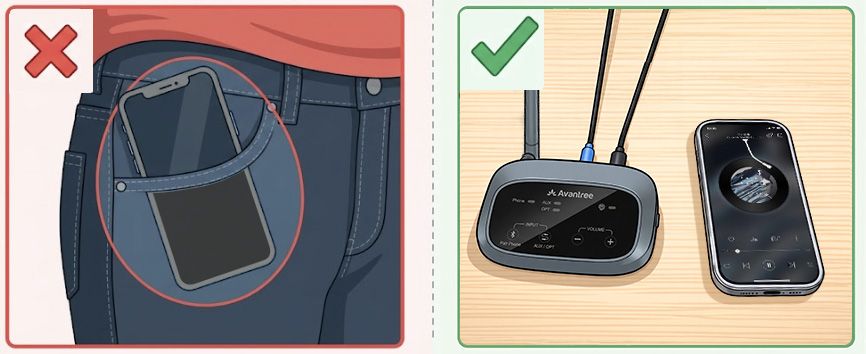
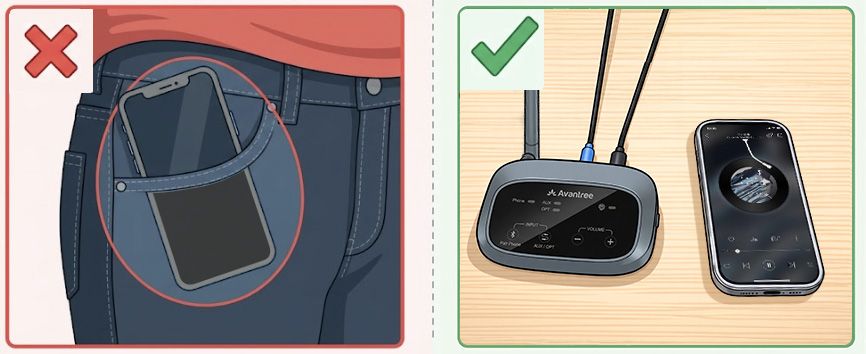
Keep your phone close to the transmitter while pairing.
  1. Start pairing: press Phone/Pair on the transmitter. Its indicator blinks red and blue.
  2. Connect your source: open Bluetooth settings and select the transmitter.
  3. Play audio on the phone, tablet, or computer.
Keep the phone near the transmitter rather than in a pocket while pairing
For a better experience: use a wired audio input for best stability. Bluetooth range is approximately 10–15 m (30–50 ft).
DoneThe audio indicator responds and listeners hear the source audio.
How It Works: Bluetooth sends audio to the transmitter. Listeners receive it through Auracast.
If notThe transmitter is not listed? Turn off Bluetooth on its previous source. Start pairing again and move the devices closer.
3

Step 03 · Listen

Listen from the speakers

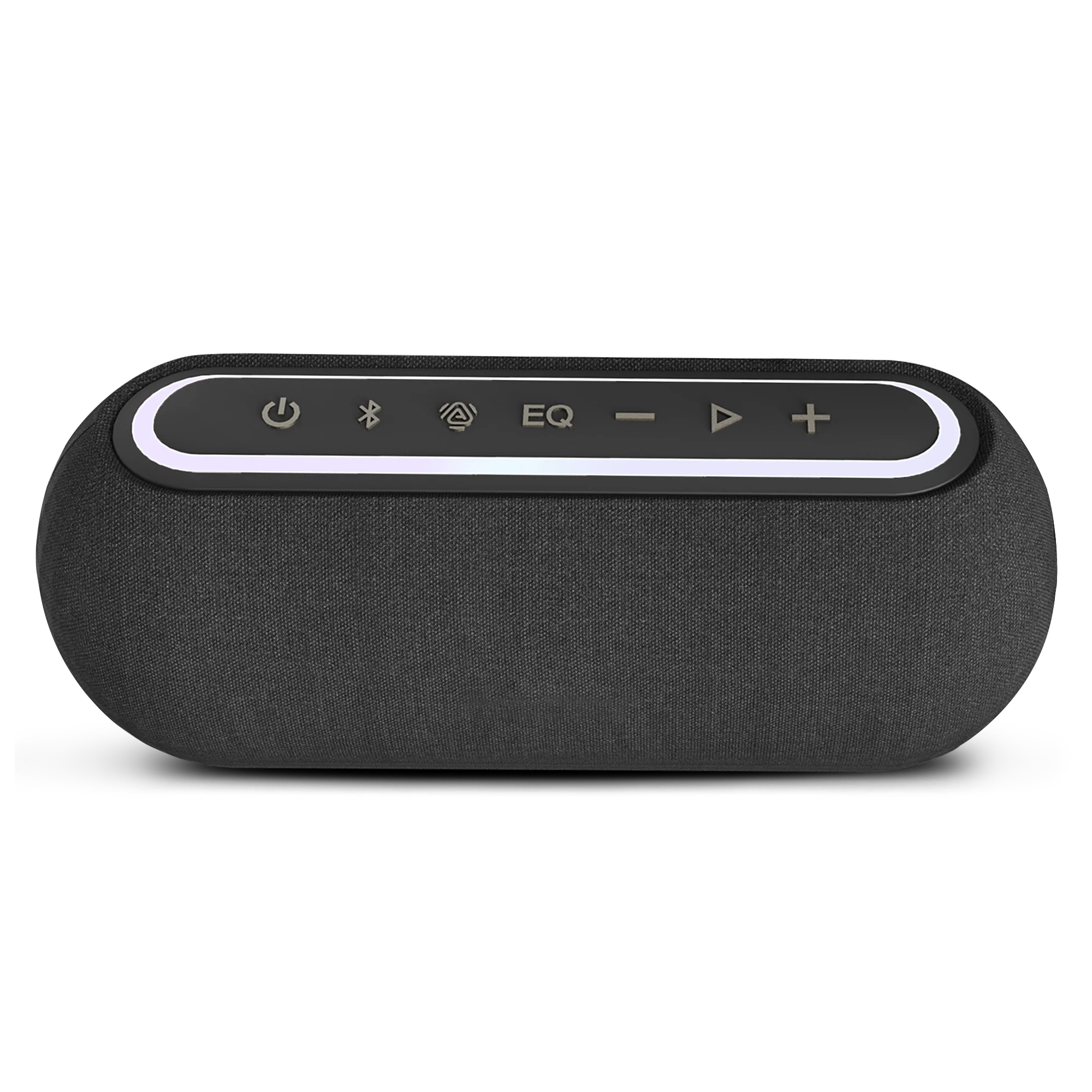
  1. Hold the power button on each Harmony A2 speaker for 2 seconds. It starts in Auracast mode and searches for the transmitter.
  2. Play audio from the connected source.

Video: power on the Harmony A2 speakers and check their Auracast lights. The written steps above contain the full setup.

DoneEach speaker's Auracast light is solid orange, and all speakers play the same audio.
If notIf a speaker's Auracast light flashes orange or stays off, press its Auracast button once and move it near the transmitter. Still no audio? Use Fix a problem.

Placement

Placement tips

Transmitter

  • Place in the center.
  • Clear line of sight.
  • Up to 330 ft.

Phone

  • Keep next to transmitter.
  • Do not keep in pocket.
Correct: keep the phone next to the transmitterIncorrect: do not keep the phone in a pocket

Optional expansion

Add speakers

Add more Auracast speakers to expand your system.

Other brands

  • Use phone app to join Auracast.
  • Auto-connect not guaranteed.

Firmware update

Update Harmony A2

Update speakers

Update each speaker separately, one at a time.

  1. Download the Firmware Update Tool.

  2. Connect one Harmony A2 speaker to your computer.

    Firmware update cable: Use the gray-tip cable that came with your device. Mac users can also use an Apple charging cable.

  3. Run the updater.

    Follow its instructions and keep one Harmony A2 speaker connected until the update is complete.

After updating, reset each speaker.

Update the transmitter

  1. Download the Firmware Update Tool.

  2. Connect the Harmony A2 transmitter to your computer.

    Firmware update cable: Use the gray-tip cable that came with your device. Mac users can also use an Apple charging cable.

  3. Run the updater.

    Follow its instructions and keep the Harmony A2 transmitter connected until the update is complete.

After updating: reset transmitter.

PC tool · Optional

Change advanced broadcast settings

Connect the Harmony A2 transmitter, then open the Firmware Update Tool Advanced screen to use these optional broadcast controls.

Example Firmware Update Tool screen with Avantree branding. Select the image to enlarge.

Firmware Update Tool Advanced screen showing broadcast name, encryption, default volume, QR code, and receiver synchronization controls
Rename the broadcast
Change the name listeners see when they search for Harmony A2.
Encrypt the broadcast
Add a passcode so only listeners with the correct code can join.
Set the default volume
Adjust the transmitter's default broadcast volume.
Generate a broadcast QR code
Create a QR code for joining the broadcast. Requires compatible hearing aids and an app that supports joining by QR code.
Use Group Settings
Apply the same broadcast name and passcode to multiple supported receivers. Learn about Group Settings →

Optional expansion

Extend the range

Use Daisy Chain to extend coverage.

  • Typical setup: 2 × Harmony A2 + 1 × AuraLink

Speaker mode

Use as Bluetooth Speaker

  1. Hold the Harmony A2 speaker's power button for 2 seconds. It starts in Auracast mode.
  2. Press the speaker's Bluetooth button once. Its Bluetooth light blinks red and blue for pairing.
  3. On your device, turn on Bluetooth and select Harmony A2.

Connected: The LED turns solid blue.

If not: Hold the Harmony A2 speaker's Bluetooth button for 3 seconds to start pairing again, then retry from the source's Bluetooth menu.

Video: switch a Harmony A2 speaker to Bluetooth mode and connect it to your device.

Need more help?

Our support team is here for you.

Contact Support

Was this helpful?