RCA Output
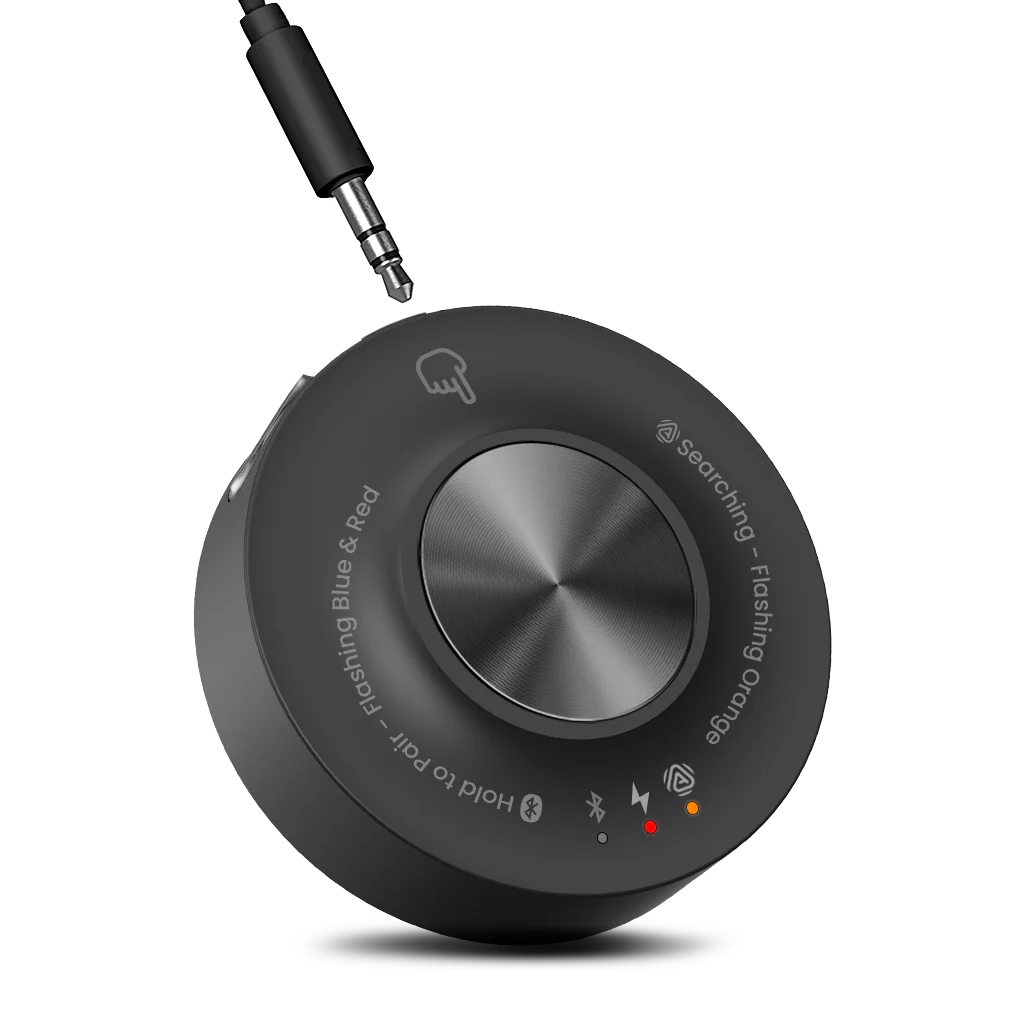
Connect RCA Out to the transmitter AUX In with an RCA-to-3.5 mm cable.
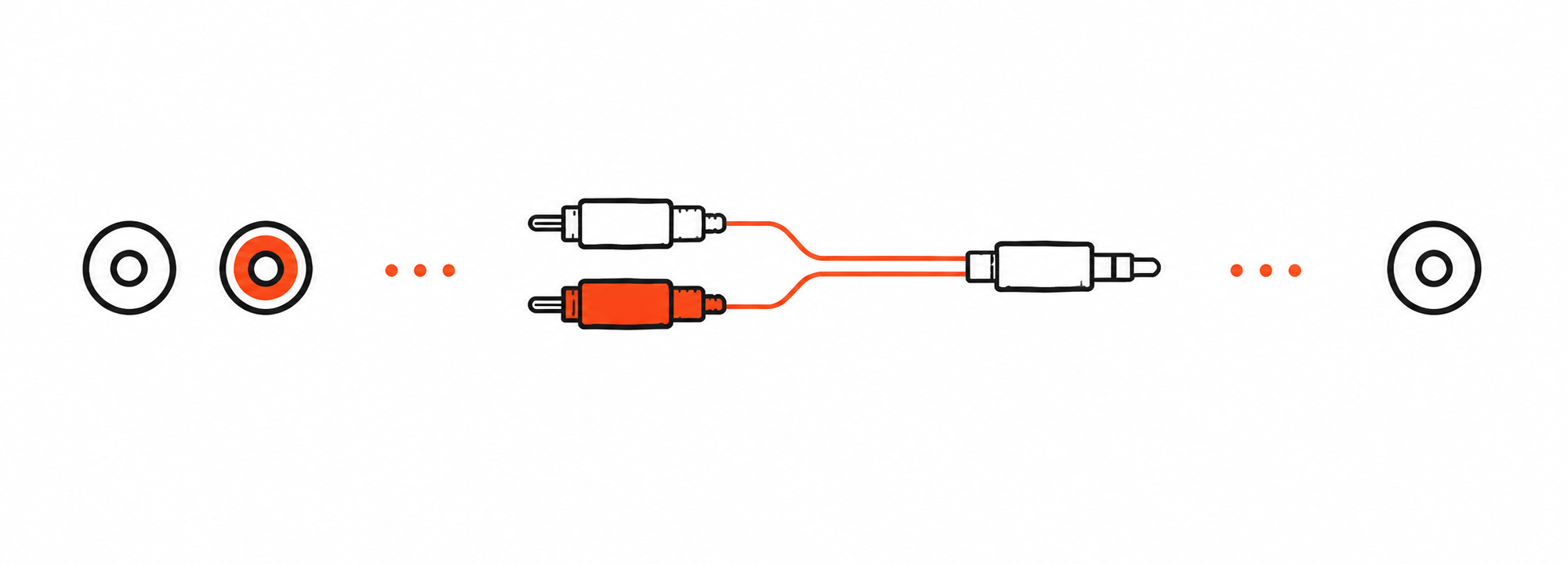

RCA cable not included. Buy separately if needed →

Interactive user guide
Follow three steps to start the Harmony A1 Auracast speaker system.
Step 01 · Power
Power Harmony A1 transmitter before connecting an audio source.
TaskTurn on the transmitter.
Connect the transmitter to power using a USB-C cable and power adapter. Then switch the transmitter to ON.
Step 02 · Audio source
Choose the device that sends audio to the transmitter.
TaskSelect one source below.
Step 03 · TV / Media Device
TaskConnect Optical Out and set the TV audio format to PCM.
Step 03 · Mixer / AV System
TaskMatch the mixer output to the correct cable.
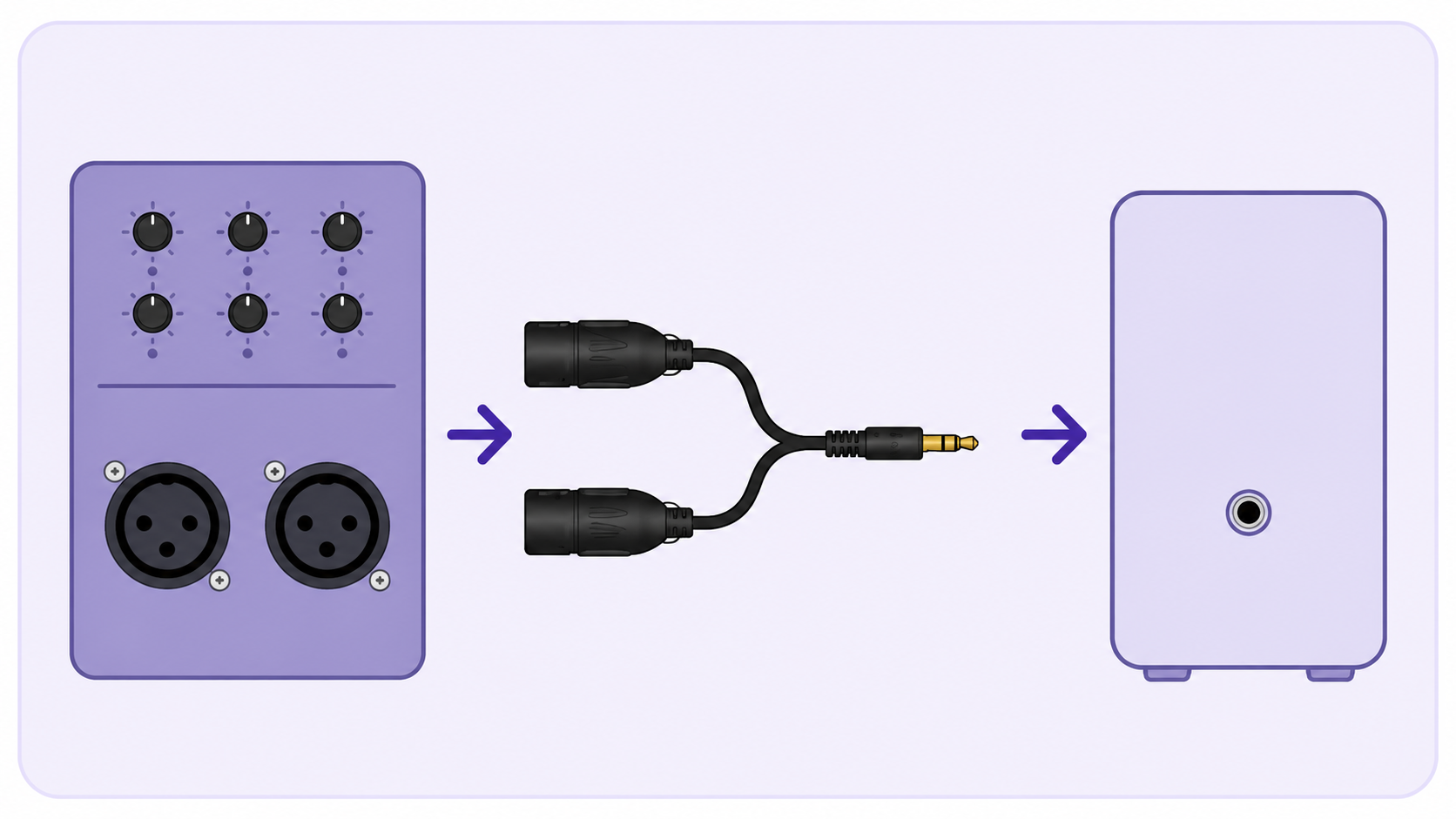
Stereo mixer output recommended

Mono output only
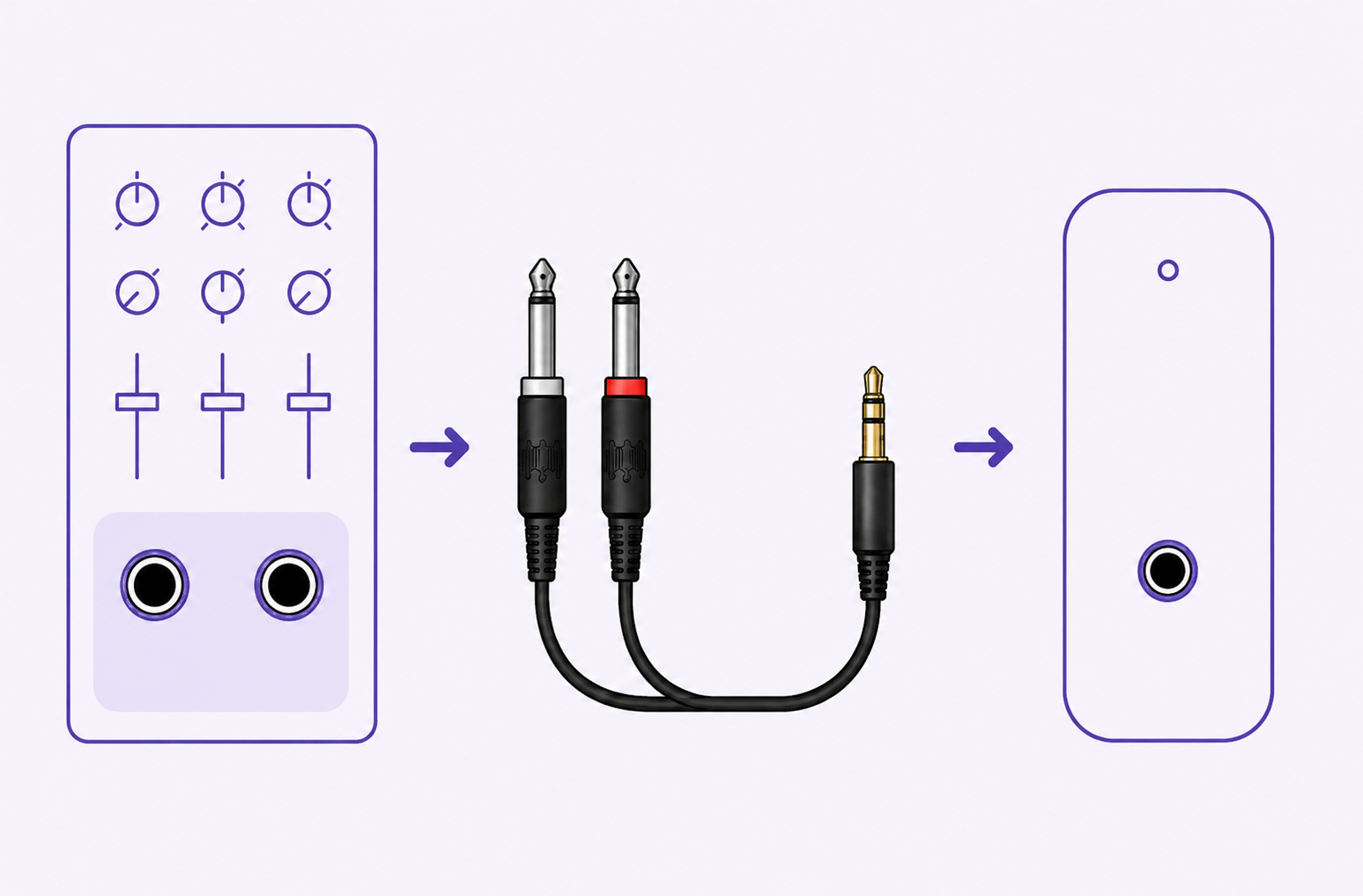
Stereo mixer output recommended
Connect RCA Out to the transmitter AUX In with an RCA-to-3.5 mm cable.
Connect 3.5 mm Out to the transmitter AUX In with the included 3.5 mm-to-3.5 mm cable.
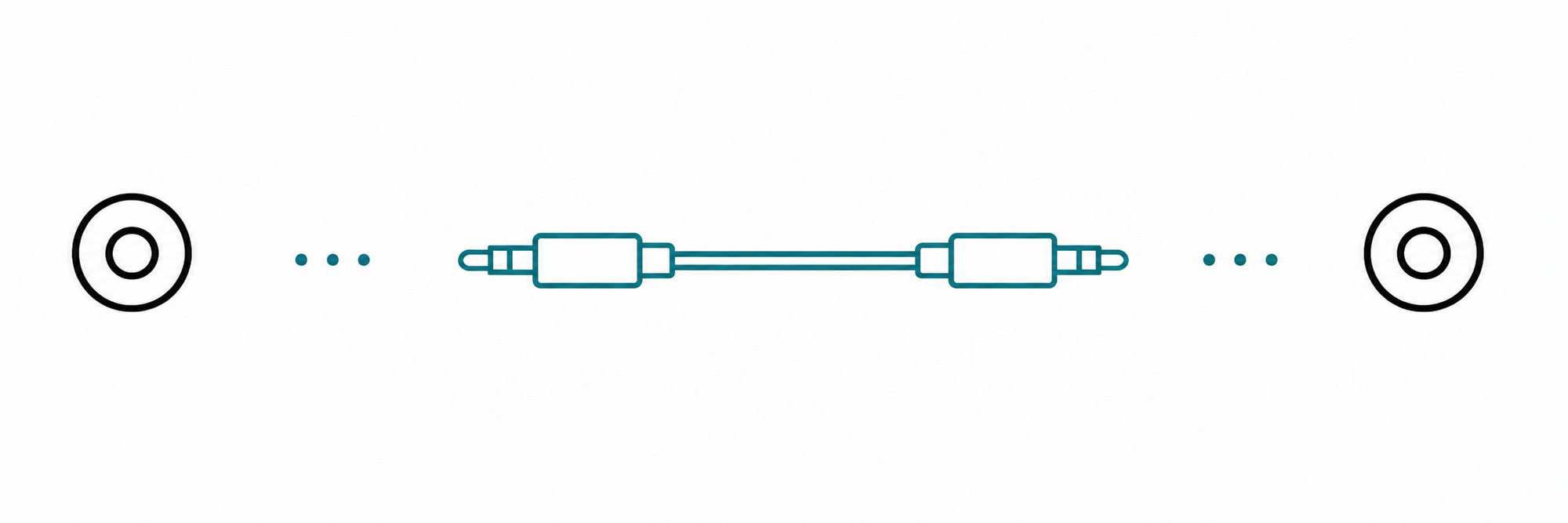
Step 03 · Phone / Tablet / Computer
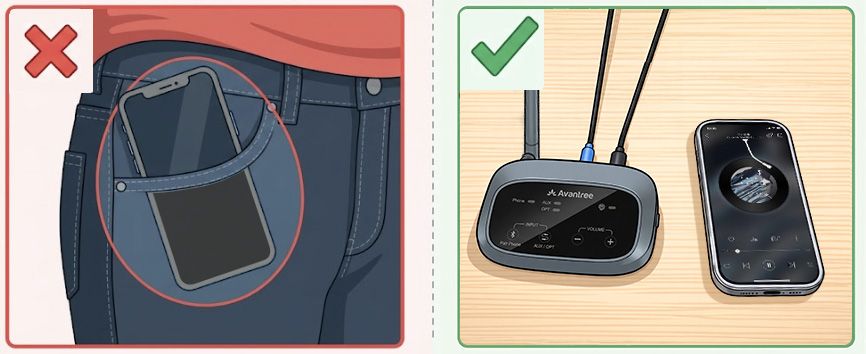
TaskPair the audio source with the transmitter Bluetooth input.
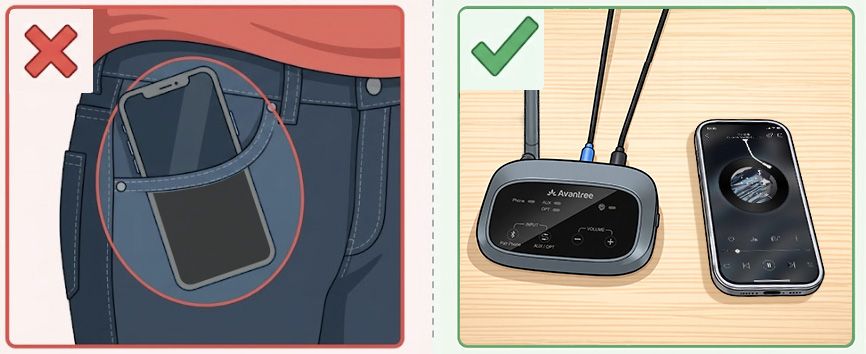
Keep your phone close to the transmitter while pairing.
Step 03 · Listen
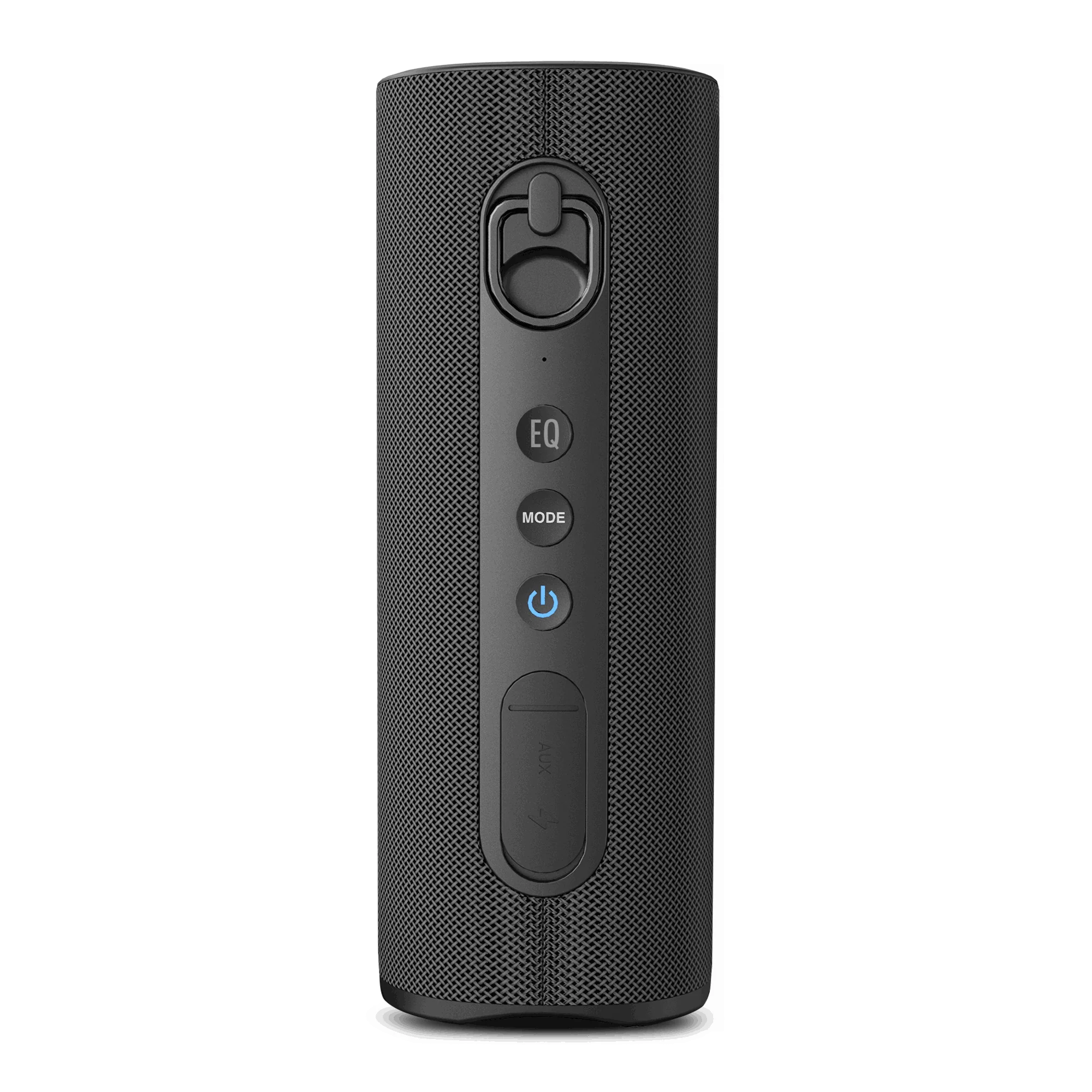
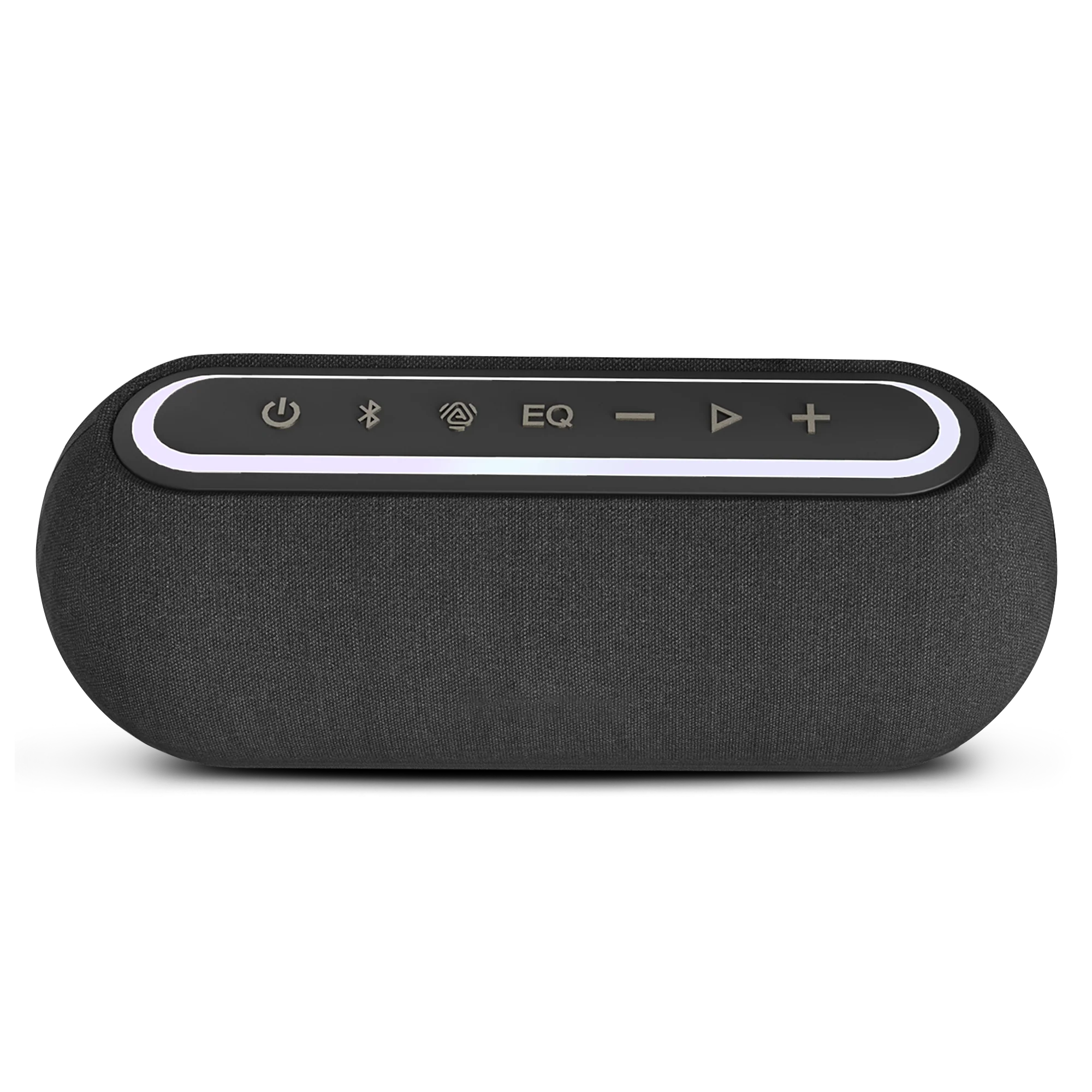
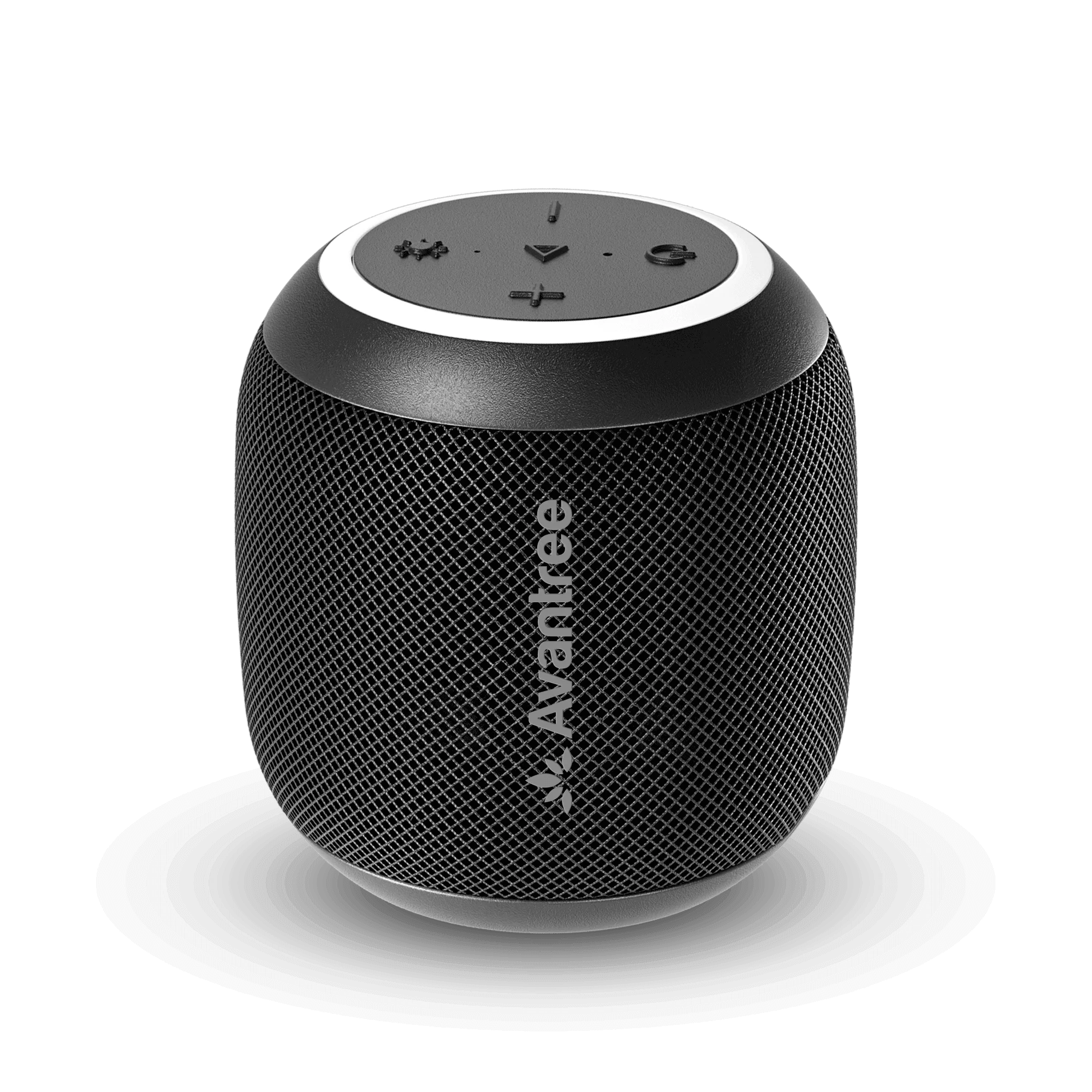
Video: turn on the speakers and check that each MODE light is solid orange.
Placement
Fix a problem
Problem: all speakers are silent.
Possible cause: the wrong transmitter input is selected, the source is not playing, or optical audio is not PCM.
Solution: play audio, select the matching OPT, AUX, or Bluetooth input, then confirm the source output. For optical TV audio, set the digital format to PCM.
Expected result: the transmitter receives audio and every joined speaker plays it. If not, test a different input method or cable.
Problem: other speakers play, but one is silent.
Possible cause: that speaker is off, out of range, or not in Auracast mode.
Solution: charge and turn on the silent speaker, move it near the transmitter, then double-press MODE if its MODE light is not orange.
Expected result: the MODE light becomes solid orange and the speaker plays the same audio. If not, power the speaker off and on near the transmitter.
Problem: audio stops briefly, crackles, or disconnects.
Possible cause: walls, people, interference, or an excessive distance is weakening the wireless path.
Solution: move the transmitter higher or more centrally, reduce obstructions, and move the affected speaker closer. For Bluetooth input, keep the phone within 10–15 m / 30–50 ft of the transmitter.
Expected result: audio remains continuous. If Bluetooth remains unstable, use optical or AUX input.
Problem: Harmony A1 does not connect from the source's Bluetooth menu.
Possible cause: the transmitter is not in Bluetooth pairing mode or is already connected to another source.
Solution: press the transmitter Bluetooth control until its indicator blinks red and blue. Disconnect other nearby sources, then select Harmony A1 again.
Expected result: the source shows connected and its audio plays through the speakers. If not, restart both devices and retry nearby.
Problem: the optical cable is connected but audio is missing or unclear.
Possible cause: the TV is using Dolby, Bitstream, or another unsupported digital format.
Solution: select Optical as the TV output and set Digital Audio Format to PCM. Confirm the cable is connected to the TV's Optical Out port.
Expected result: clear TV audio plays through all joined speakers. If not, reseat or replace the optical cable.
Problem: a speaker powers off after an idle period.
Possible cause: the documented default behavior is automatic power-off after about 60 minutes without audio, even when a broadcast is joined.
Solution: resume audio and power the speaker on. For always-on use while plugged in, check the official Harmony A1 firmware page for the required update.
Expected result: playback resumes. Always-on behavior depends on verified firmware availability.
Reference
Match each light color with its pattern; color alone is not enough.
Firmware update
Update the speakers one at a time. Complete all three steps for one speaker before connecting the next speaker.
Open the Firmware Update Tool on a Windows/Mac computer.
Connect one Harmony A1 speaker to your computer with a USB data cable.
Run the updater. Follow its instructions and keep one Harmony A1 speaker connected until it says Complete.
Open the Firmware Update Tool on a Windows/Mac computer.
Connect the Harmony A1 transmitter to your computer with a USB data cable.
Run the updater. Follow its instructions and keep the Harmony A1 transmitter connected until it says Complete.
After updating each device, reset it before continuing.
Still need help?
Include the audio source, selected input, speaker MODE light, and steps already tried.
Product support
A Venucast support agent can review your Harmony A1 setup details and attachments.
Submit a ticket →Was this helpful?